> ## Documentation Index
> Fetch the complete documentation index at: https://docs.cyberwave.com/llms.txt
> Use this file to discover all available pages before exploring further.
# Train an AI model on the SO-101
> Complete guide to setup robots, collect teleoperation data, train AI models, and deploy them on real hardware.
## Overview
This tutorial walks you through the complete workflow for training and deploying Vision-Language-Action (VLA) models on SO101 robot arms using Cyberwave. You'll learn how to:
* Set up your physical robot hardware and connect it to Cyberwave
* Calibrate robots for accurate teleoperation
* Collect high-quality demonstration data through teleoperation
* Create and manage datasets from recorded episodes
* Train ML models on your custom datasets
* Deploy trained models as autonomous controllers
By the end of this tutorial, you'll have a working VLA model that can control your SO101 robot using natural language prompts.
This tutorial assumes you've already completed the [SO101 Get Started guide](https://cyberwave.com/the-robot-studio/so101) and have a working teleoperation setup.
***
## Prerequisites
Before starting this tutorial, ensure you have:
* SO101 robot arm set (leader and follower) properly connected
* Wrist-mounted camera on the follower arm
* Edge device (computer or SBC) running Cyberwave Edge Core
* Physical workspace cleared and ready for demonstrations
* Active Cyberwave account with environment configured
* SO101 and camera twins created and paired with physical hardware
* Cyberwave CLI and Edge Core installed and running
* Both robots successfully calibrated (see Step 1 below if not)
***
## Step 1: Initial Setup and Calibration
### Create Your Environment
If you haven't already created an environment:
1. Sign up for a Cyberwave account
2. Create a new environment with:
* One SO101 robot twin
* One wrist camera twin (docked to the SO101's wrist)
* Optional: Additional USB cameras for multi-view recording
**API Reference:**
* `POST /api/v1/environments` - Create a new environment
* `POST /api/v1/twins` - Create digital twins
* `GET /api/v1/environments/{uuid}/twins` - List twins in an environment
**MQTT Topics:**
* `cyberwave/twin/{uuid}/command` - Receive commands from cloud (subscribed by edge)
* `cyberwave/twin/{uuid}/telemetry` - Send telemetry events (connected, disconnected, telemetry\_start, telemetry\_end, initial\_observation)
### Install Cyberwave Edge
Connect your edge device to Cyberwave:
```bash theme={null}
# Install the Cyberwave CLI
curl -fsSL https://cyberwave.com/install.sh | bash
# Install and configure Edge Core
sudo cyberwave edge install
```
Follow the prompts to:
* Log in with your Cyberwave credentials
* Select your environment
* Pair physical hardware with digital twins
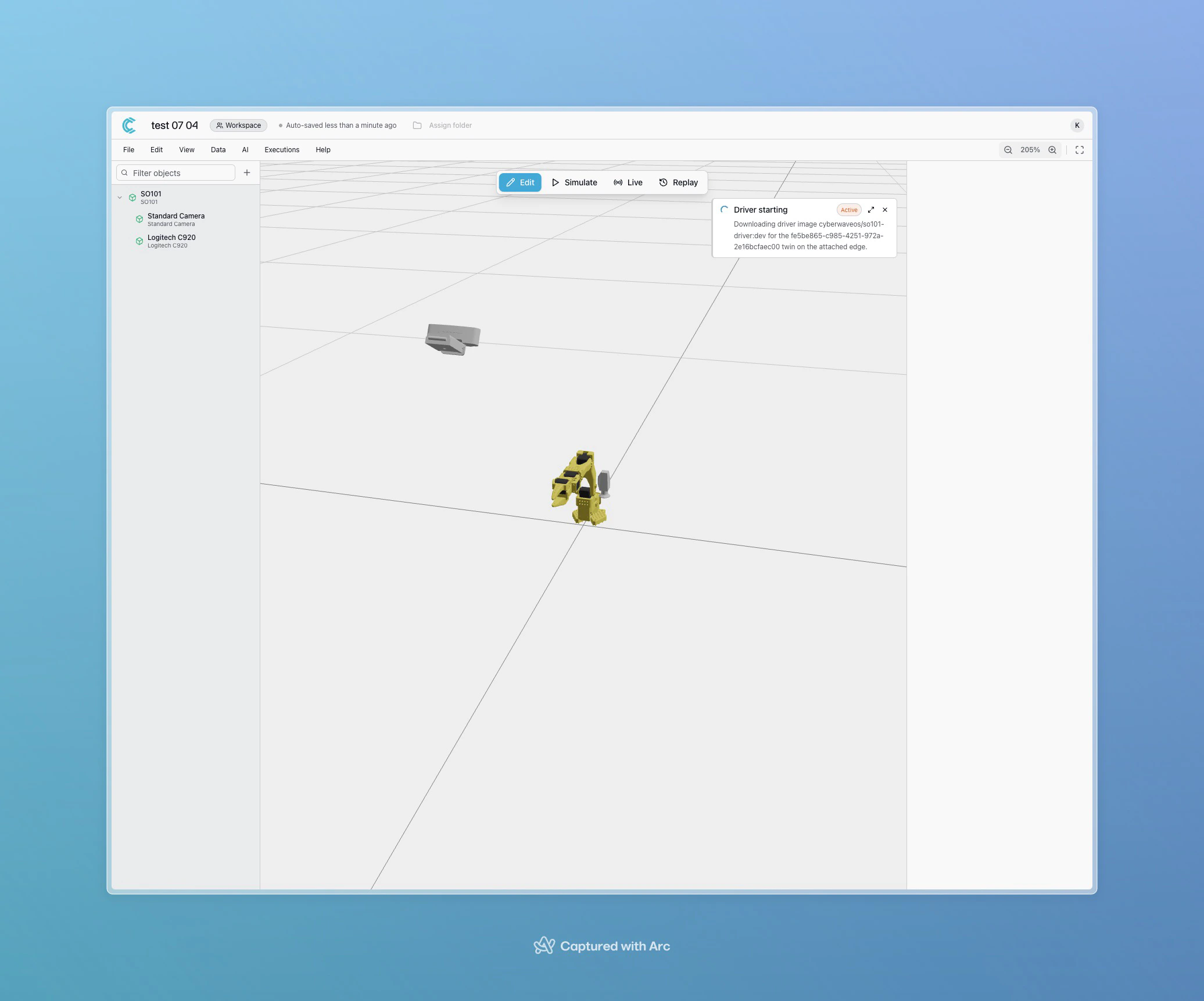 ### Calibrate Your Robots
Calibration is **required** before using the SO101 for teleoperation or control. The platform will alert you when calibration is missing or required.
### Calibrate Your Robots
Calibration is **required** before using the SO101 for teleoperation or control. The platform will alert you when calibration is missing or required.
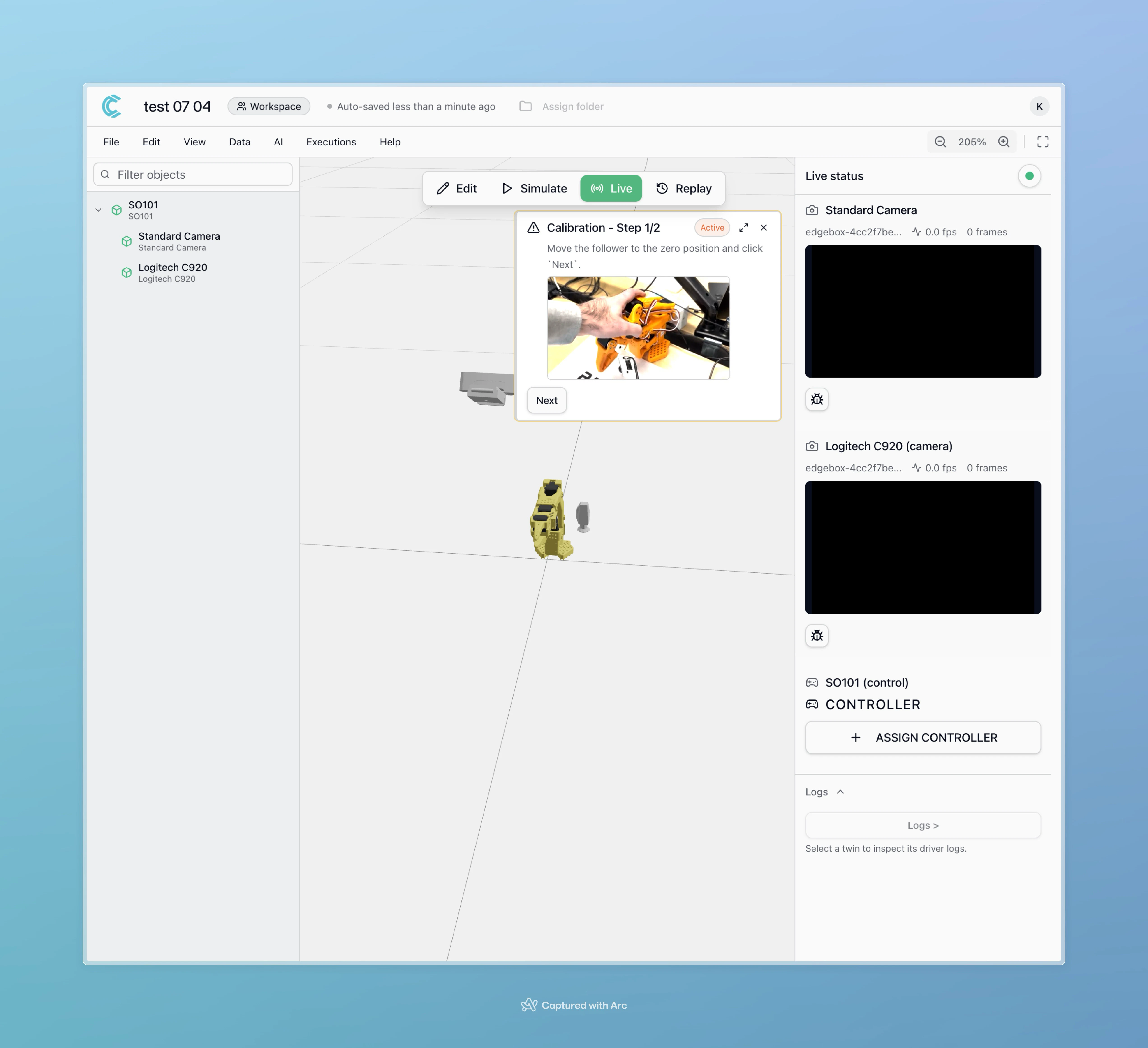 You can close calibration alerts without calibrating, but they will reappear when the robot needs to be used. Complete calibration before proceeding with data collection.
**To calibrate:**
1. Navigate to your environment in **Live Mode**
2. Select the SO101 twin
3. Click the **Calibrate** button for each arm (leader and follower)
4. Follow the on-screen instructions to move joints through their full range
**Calibration outcomes:**
* **Success**: Calibration completes without alerts; proceed to teleoperation
* **Poor quality**: Platform warns that calibration may be inaccurate; consider re-taking
* **Failure**: Calibration fails with specific error messages; review errors and retry
You can close calibration alerts without calibrating, but they will reappear when the robot needs to be used. Complete calibration before proceeding with data collection.
**To calibrate:**
1. Navigate to your environment in **Live Mode**
2. Select the SO101 twin
3. Click the **Calibrate** button for each arm (leader and follower)
4. Follow the on-screen instructions to move joints through their full range
**Calibration outcomes:**
* **Success**: Calibration completes without alerts; proceed to teleoperation
* **Poor quality**: Platform warns that calibration may be inaccurate; consider re-taking
* **Failure**: Calibration fails with specific error messages; review errors and retry
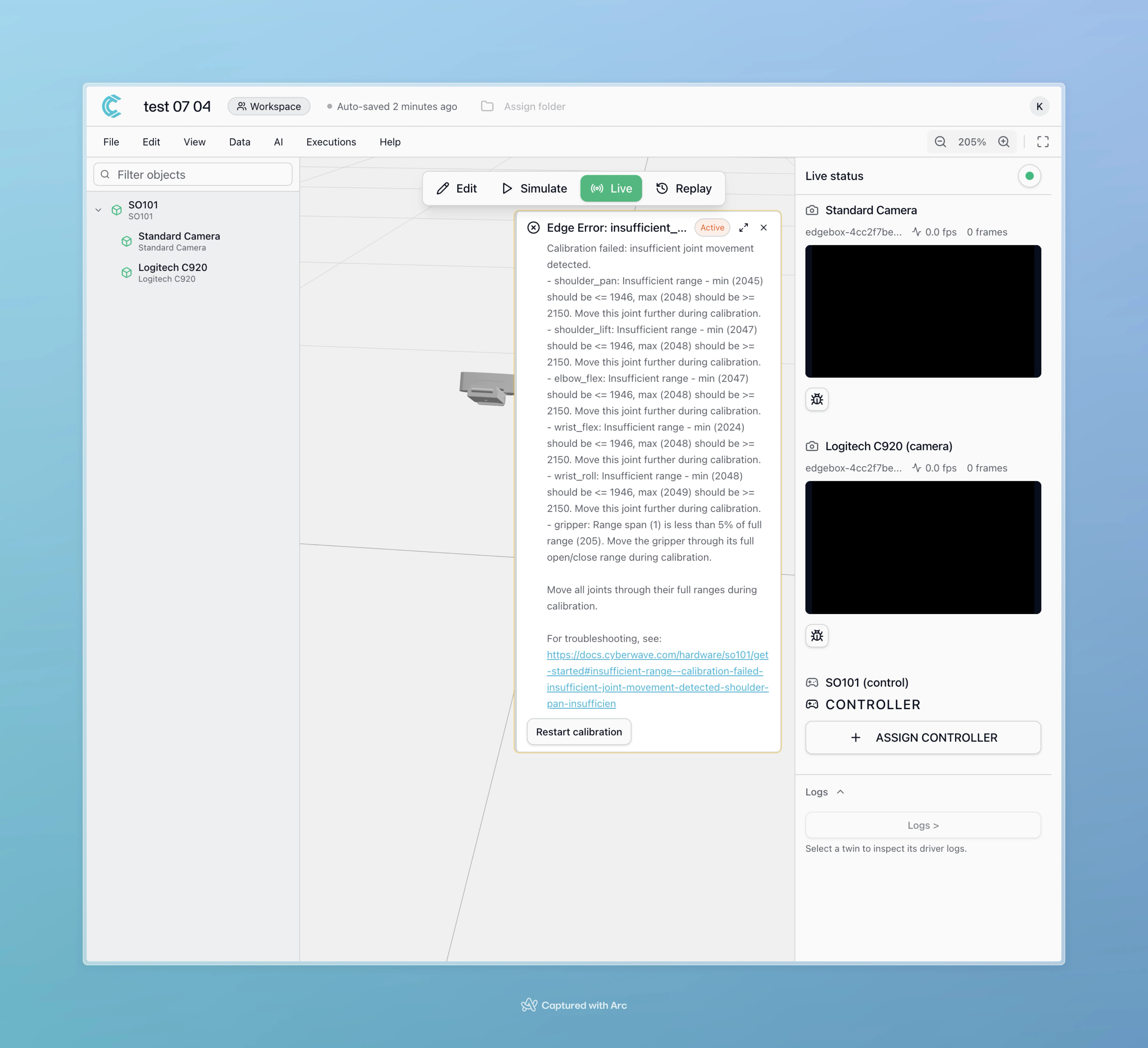 **Recalibrating later:**
You can recalibrate anytime from **Live Mode** by selecting the twin and clicking the calibration option.
**Recalibrating later:**
You can recalibrate anytime from **Live Mode** by selecting the twin and clicking the calibration option.
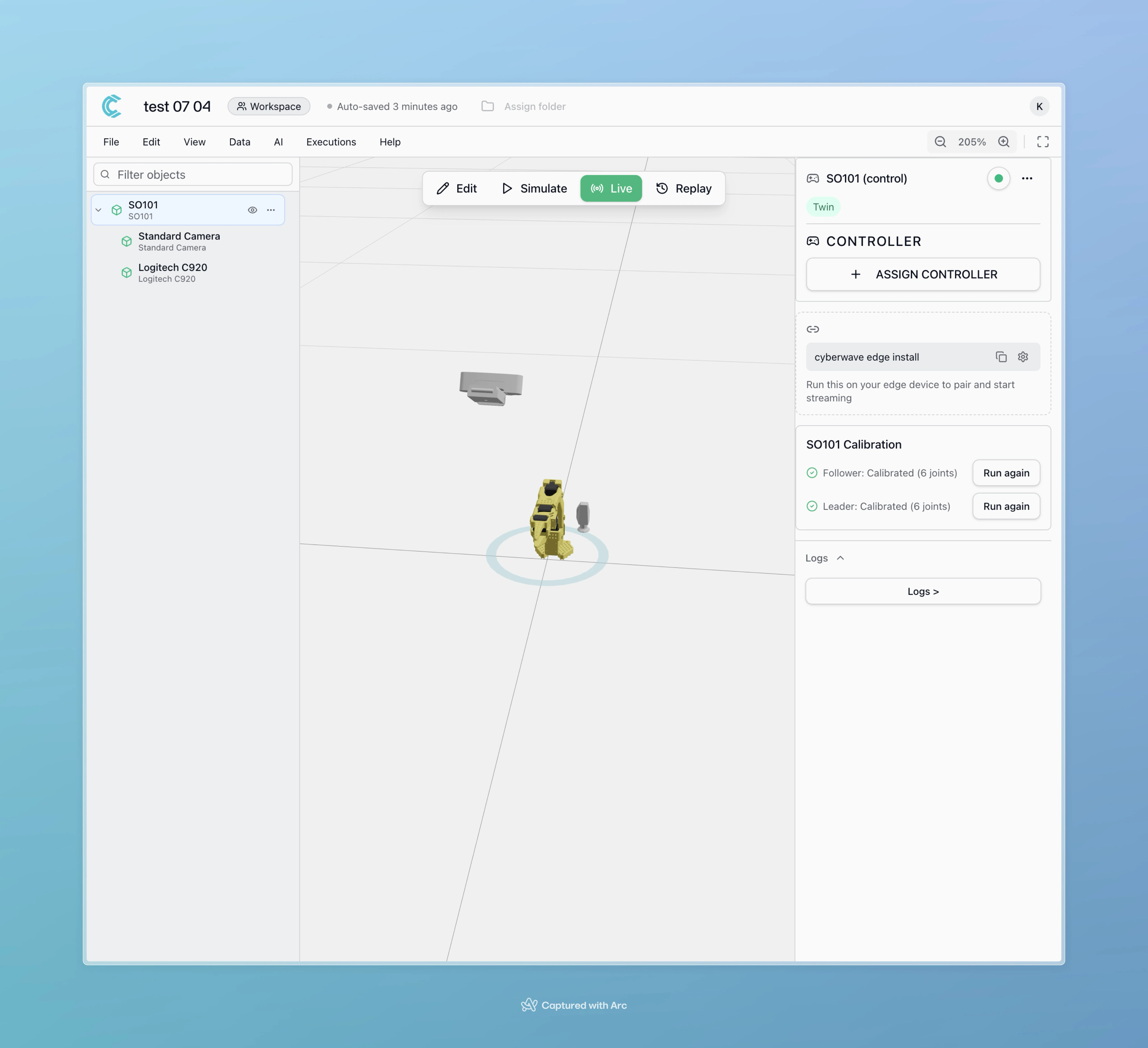 Store calibration results by twin UUID. If you rebuild or reset your edge device, you may need to recalibrate.
**API Reference:**
* `GET /api/v1/twins/{uuid}/calibration` - Get twin calibration data
* `POST /api/v1/twins/{uuid}/calibration` - Update twin calibration
* `DELETE /api/v1/twins/{uuid}/calibration` - Delete calibration data
**MQTT Topics:**
* `cyberwave/twin/{uuid}/command` - Calibration commands (start, next, complete)
***
## Step 2: Collect Demonstration Data
Now that your robots are calibrated, you'll collect demonstration data by performing the task you want the AI model to learn.
### Assign the Local Teleop Controller
The **Local Teleop** controller is specifically designed for high-quality data collection. It operates the follower arm at high frequency based on leader arm movements, producing smooth, consistent demonstrations ideal for ML training.
1. In your environment, switch to **Live Mode**
2. Select the SO101 twin
3. Click **Assign Controller**
4. Select **Local Teleop** from the controller list
Store calibration results by twin UUID. If you rebuild or reset your edge device, you may need to recalibrate.
**API Reference:**
* `GET /api/v1/twins/{uuid}/calibration` - Get twin calibration data
* `POST /api/v1/twins/{uuid}/calibration` - Update twin calibration
* `DELETE /api/v1/twins/{uuid}/calibration` - Delete calibration data
**MQTT Topics:**
* `cyberwave/twin/{uuid}/command` - Calibration commands (start, next, complete)
***
## Step 2: Collect Demonstration Data
Now that your robots are calibrated, you'll collect demonstration data by performing the task you want the AI model to learn.
### Assign the Local Teleop Controller
The **Local Teleop** controller is specifically designed for high-quality data collection. It operates the follower arm at high frequency based on leader arm movements, producing smooth, consistent demonstrations ideal for ML training.
1. In your environment, switch to **Live Mode**
2. Select the SO101 twin
3. Click **Assign Controller**
4. Select **Local Teleop** from the controller list
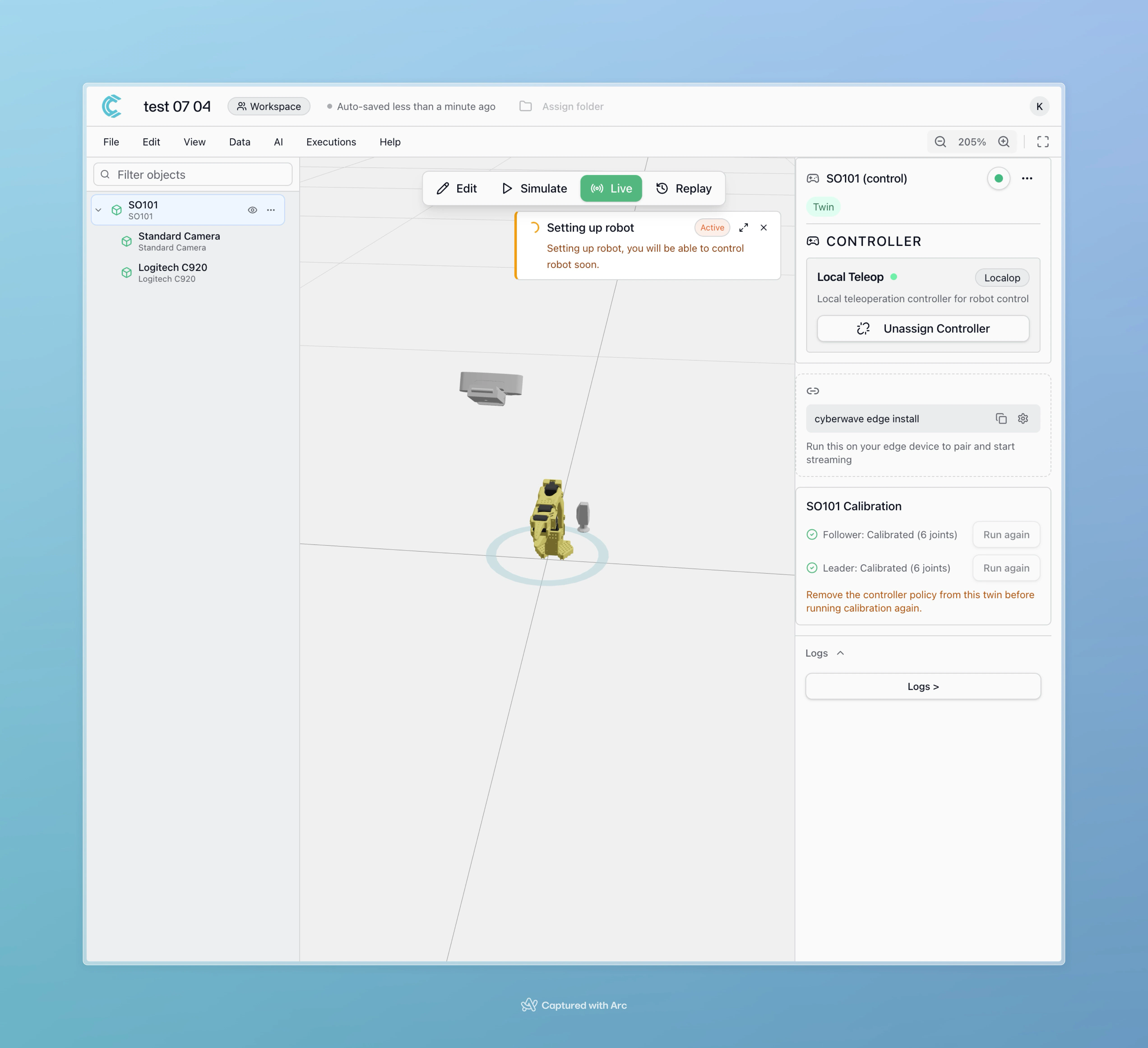
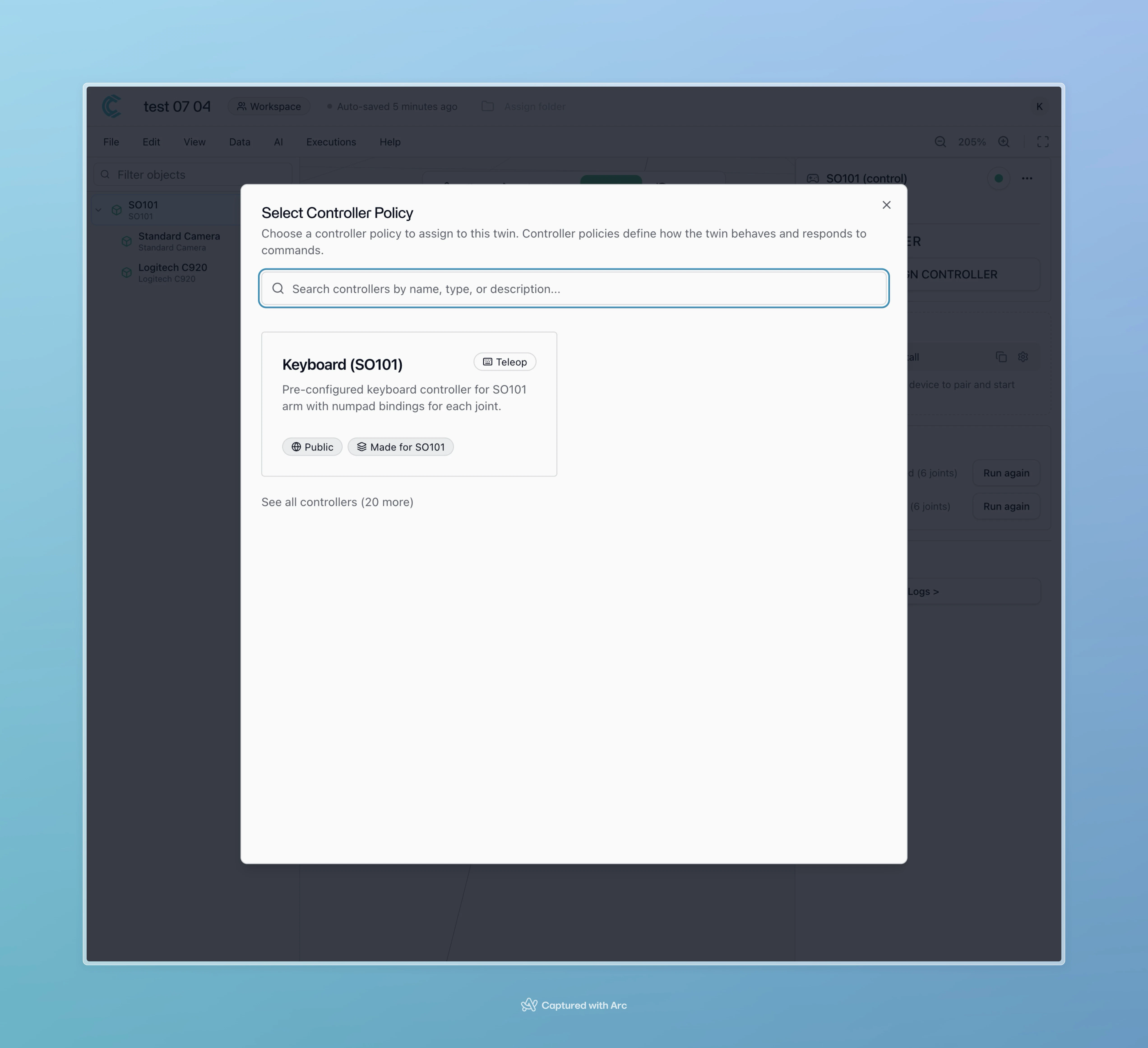 An alert will appear showing setup progress:
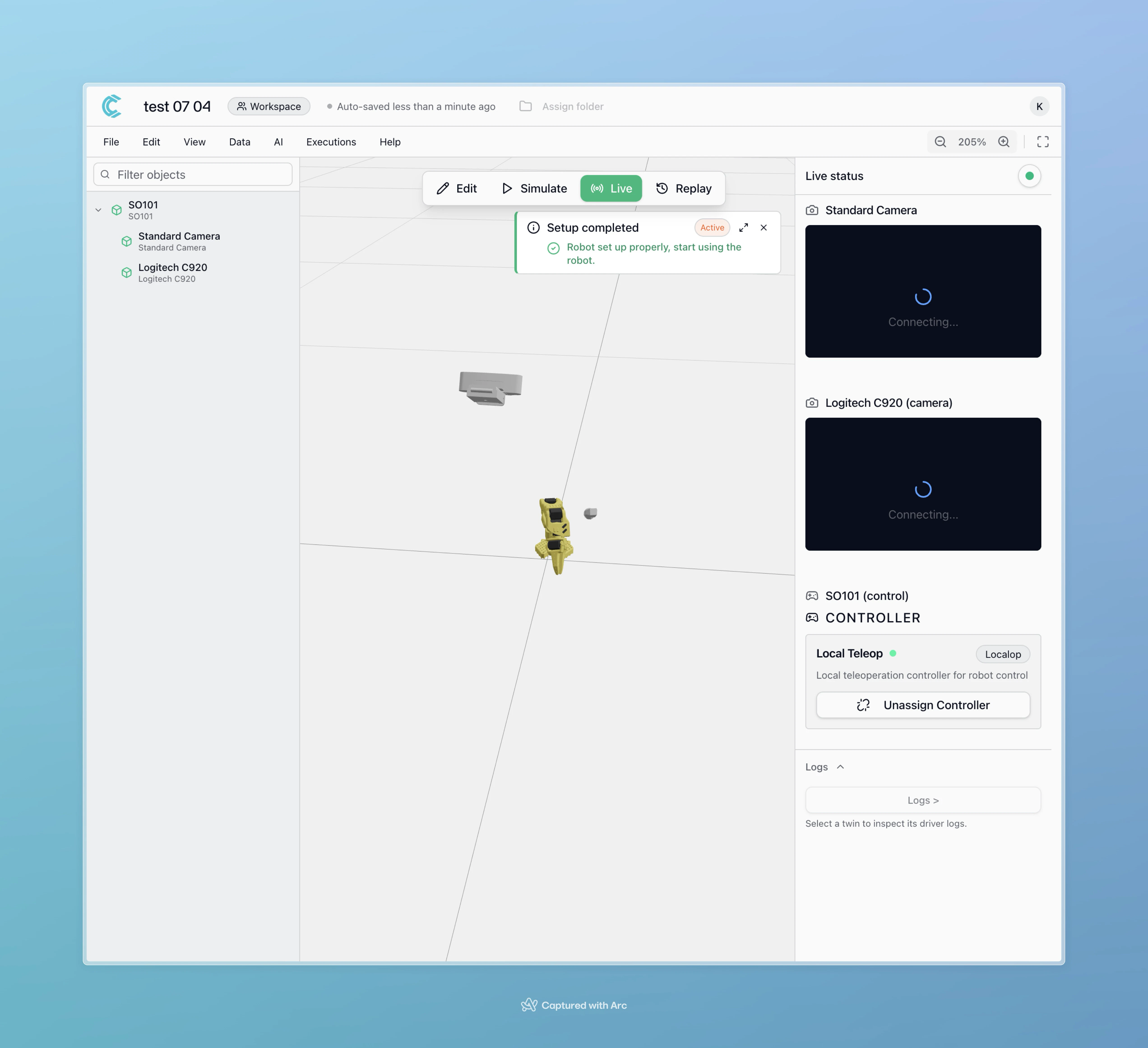
 Once setup completes:
 **Why Local Teleop for data collection?**
Local Teleop generates high-frequency control data as you move the leader arm, producing smooth trajectories. Other controllers (like Keyboard) operate at much lower frequencies and produce jerky, inconsistent data unsuitable for training ML models.
### Verify Teleoperation is Active
Confirm the system is ready:
* Cameras are streaming video
* Leader arm movements are mirrored by the follower arm
* Cyberwave is recording telemetry data
**Why Local Teleop for data collection?**
Local Teleop generates high-frequency control data as you move the leader arm, producing smooth trajectories. Other controllers (like Keyboard) operate at much lower frequencies and produce jerky, inconsistent data unsuitable for training ML models.
### Verify Teleoperation is Active
Confirm the system is ready:
* Cameras are streaming video
* Leader arm movements are mirrored by the follower arm
* Cyberwave is recording telemetry data
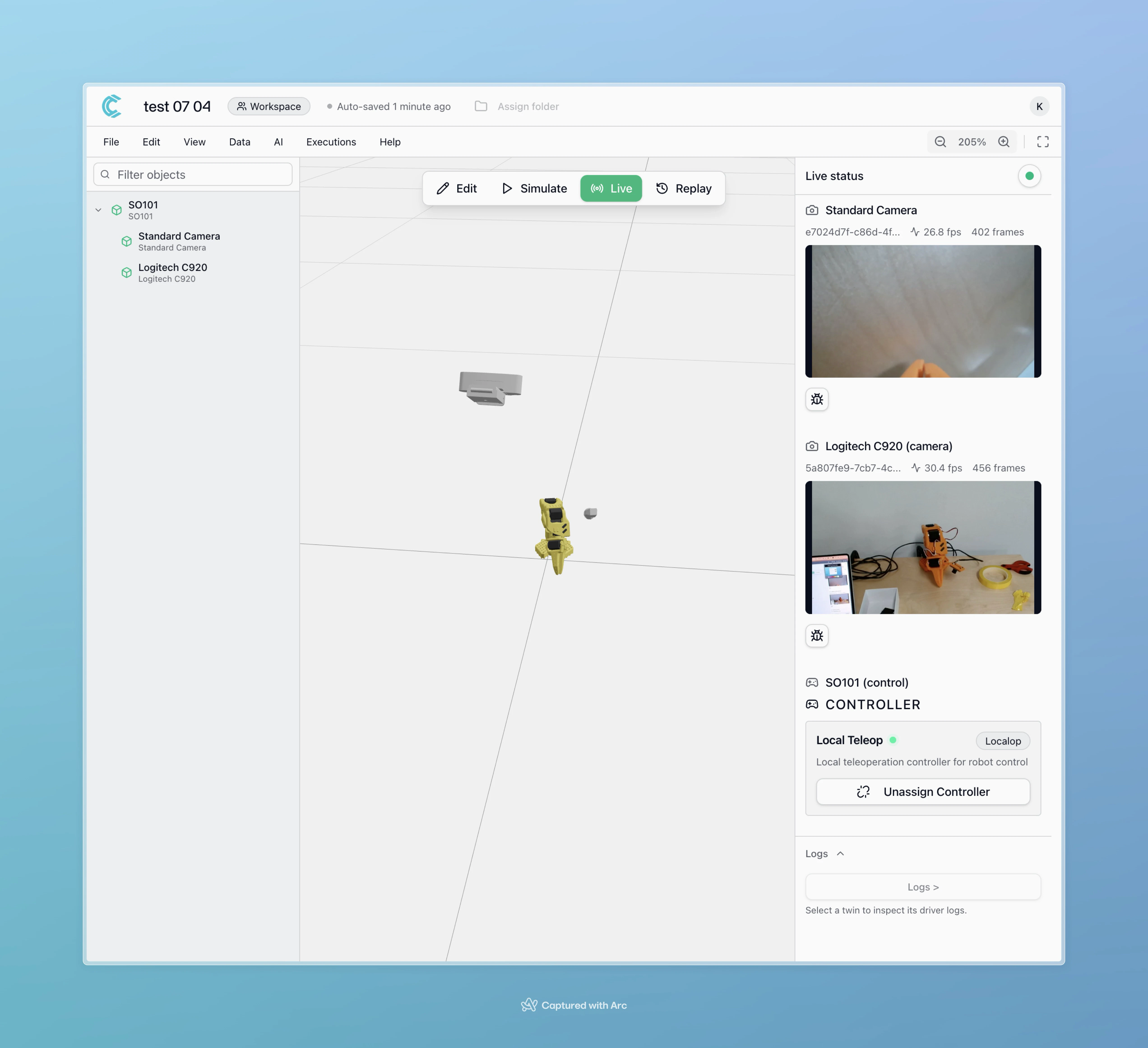 By default, a keyboard controller may be assigned to your robot. The platform automatically removes it when calibration alerts appear or when you assign Local Teleop.
### Perform Task Demonstrations
With teleoperation active and recording:
1. **Plan your task**: Decide exactly what behavior you want to teach (e.g., "pick up red cube and place in box")
2. **Execute demonstrations**: Use the leader arm to guide the follower through the task
3. **Repeat with variation**: Perform the same task 20-50 times with slight variations in:
* Starting positions
* Object placement
* Movement speed
* Approach angles
**Recording best practices:**
* Keep demonstrations smooth and deliberate
* Complete each task fully (don't stop mid-action)
* Vary conditions slightly to improve model generalization
* Maintain consistent camera angles and lighting
* Clear the workspace between demonstrations if needed
### Stop Recording
When you've collected enough demonstrations:
1. Select the SO101 twin
2. Click **Remove Controller** or detach the Local Teleop controller
3. Your recorded data is automatically saved to the platform
Data will appear in **Replay Mode** after processing (timing depends on session duration).
**API Reference:**
* `PUT /api/v1/twins/{uuid}` - Update twin properties (assign/remove controller)
* `GET /api/v1/environments/{uuid}/recordings` - Get recordings for an environment
**MQTT Topics:**
* `cyberwave/twin/{uuid}/telemetry` - Recording lifecycle events:
* `telemetry_start` - Recording begins (triggers cloud processing)
* `telemetry_end` - Recording ends (triggers final processing and storage)
* `initial_observation` - Initial robot state snapshot
* `camera_stored` - Video stream saved
* `cyberwave/joint/{uuid}/+` - Joint state updates during recording
* `cyberwave/twin/{uuid}/command` - Controller assignment changes
***
## Step 3: Create Episodes and Datasets
After data collection, you'll review recordings and create structured datasets for training.
### Review Recorded Data in Replay Mode
1. Switch to **Replay Mode** in your environment
2. Locate your recent recording sessions in the timeline
By default, a keyboard controller may be assigned to your robot. The platform automatically removes it when calibration alerts appear or when you assign Local Teleop.
### Perform Task Demonstrations
With teleoperation active and recording:
1. **Plan your task**: Decide exactly what behavior you want to teach (e.g., "pick up red cube and place in box")
2. **Execute demonstrations**: Use the leader arm to guide the follower through the task
3. **Repeat with variation**: Perform the same task 20-50 times with slight variations in:
* Starting positions
* Object placement
* Movement speed
* Approach angles
**Recording best practices:**
* Keep demonstrations smooth and deliberate
* Complete each task fully (don't stop mid-action)
* Vary conditions slightly to improve model generalization
* Maintain consistent camera angles and lighting
* Clear the workspace between demonstrations if needed
### Stop Recording
When you've collected enough demonstrations:
1. Select the SO101 twin
2. Click **Remove Controller** or detach the Local Teleop controller
3. Your recorded data is automatically saved to the platform
Data will appear in **Replay Mode** after processing (timing depends on session duration).
**API Reference:**
* `PUT /api/v1/twins/{uuid}` - Update twin properties (assign/remove controller)
* `GET /api/v1/environments/{uuid}/recordings` - Get recordings for an environment
**MQTT Topics:**
* `cyberwave/twin/{uuid}/telemetry` - Recording lifecycle events:
* `telemetry_start` - Recording begins (triggers cloud processing)
* `telemetry_end` - Recording ends (triggers final processing and storage)
* `initial_observation` - Initial robot state snapshot
* `camera_stored` - Video stream saved
* `cyberwave/joint/{uuid}/+` - Joint state updates during recording
* `cyberwave/twin/{uuid}/command` - Controller assignment changes
***
## Step 3: Create Episodes and Datasets
After data collection, you'll review recordings and create structured datasets for training.
### Review Recorded Data in Replay Mode
1. Switch to **Replay Mode** in your environment
2. Locate your recent recording sessions in the timeline
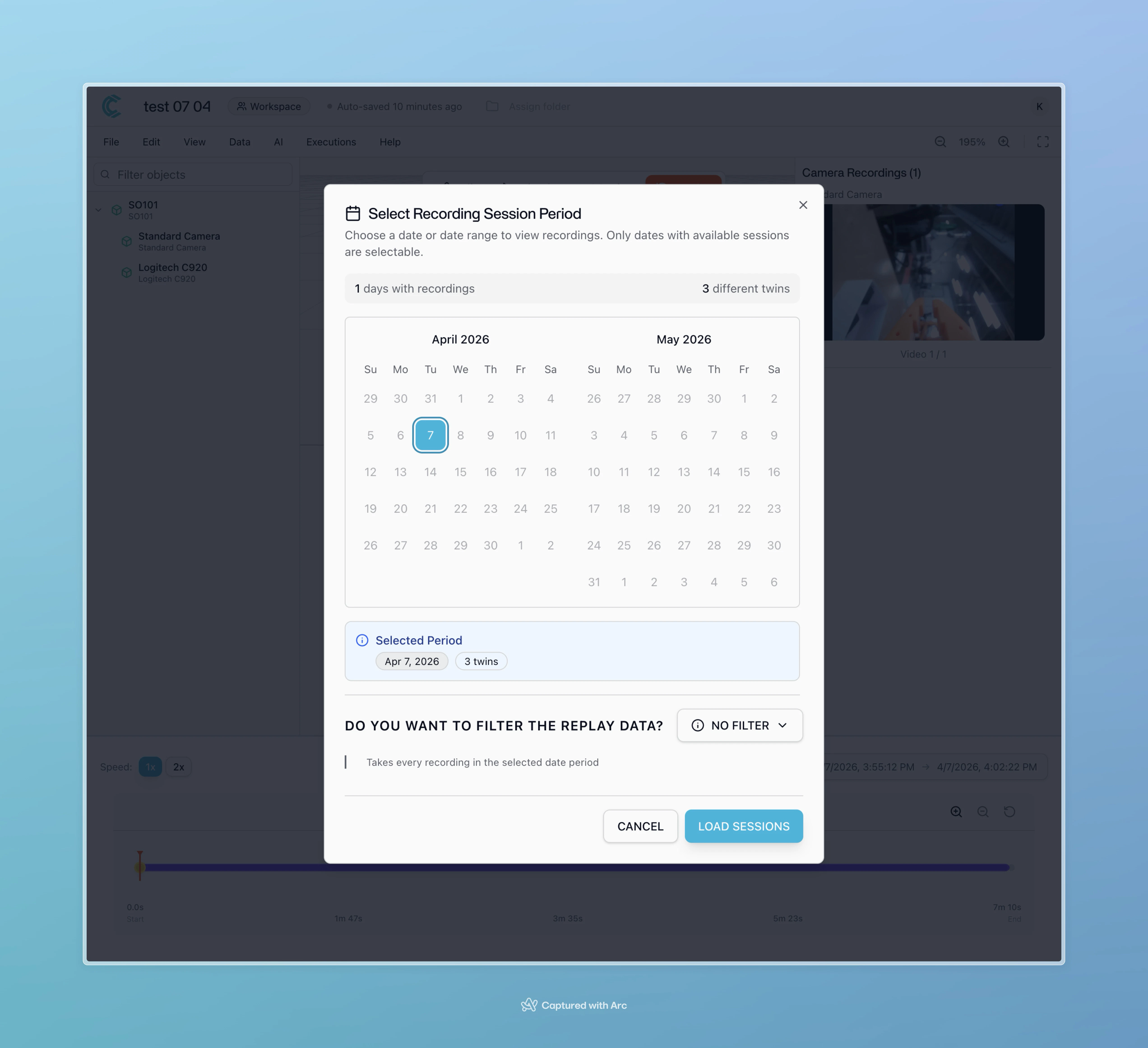 You can scrub through the timeline to see:
* Joint positions over time
* Camera feeds
* Control inputs
You can scrub through the timeline to see:
* Joint positions over time
* Camera feeds
* Control inputs
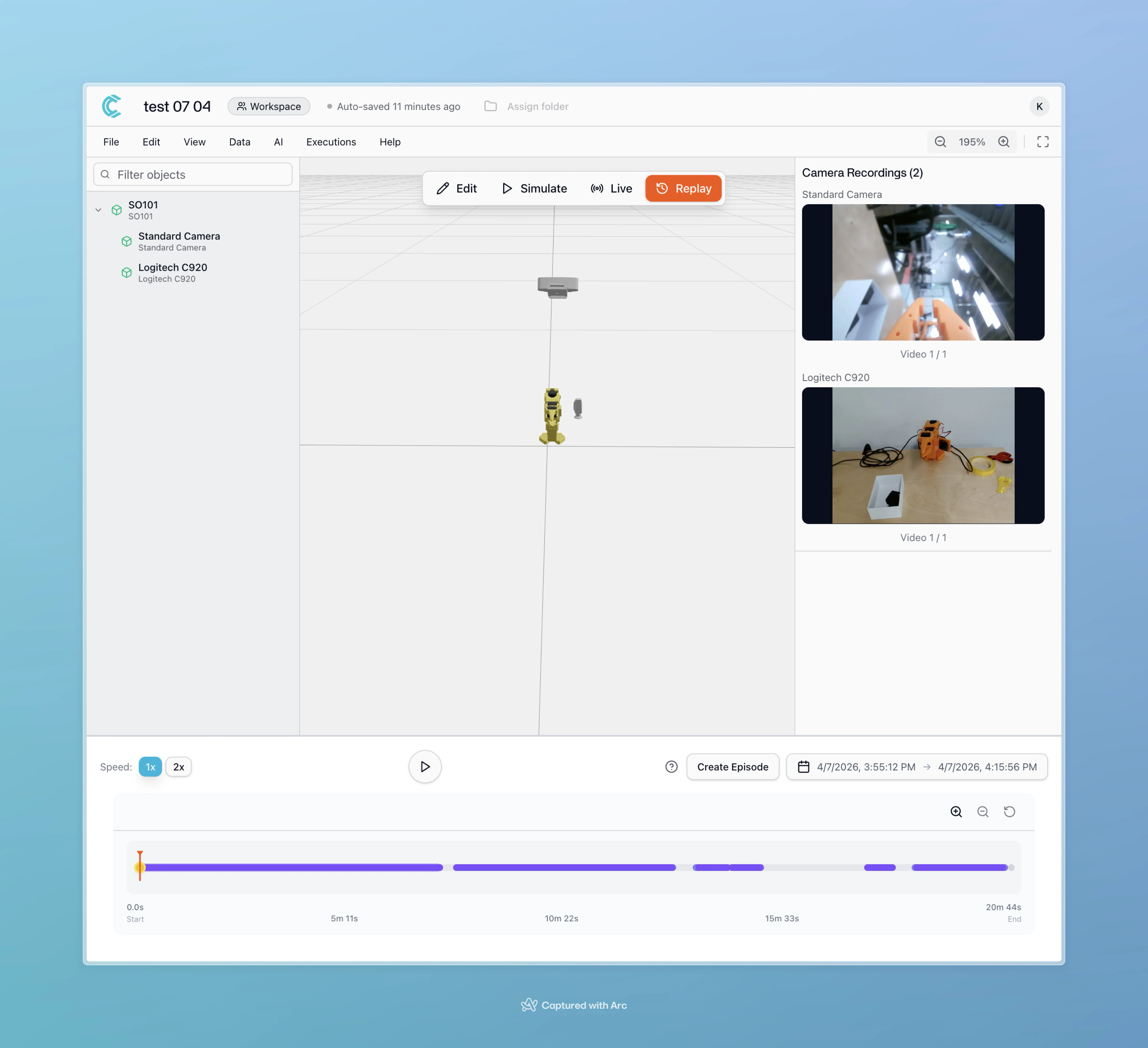 **stub**: The platform doesn't currently highlight when specific controllers were active or which twin performed actions. Use hover tooltips and timeline markers to identify useful data segments.
### Create Episodes
**Episodes** are trimmed segments of your recording that contain single, complete task demonstrations.
1. In Replay Mode, identify the start and end of each successful demonstration
2. Use the episode creation tool to trim each segment:
* Set the start point (task begins)
* Set the end point (task completes)
* Name the episode descriptively (optional)
3. Remove any failed attempts, setup time, or pauses between demonstrations
**stub**: The platform doesn't currently highlight when specific controllers were active or which twin performed actions. Use hover tooltips and timeline markers to identify useful data segments.
### Create Episodes
**Episodes** are trimmed segments of your recording that contain single, complete task demonstrations.
1. In Replay Mode, identify the start and end of each successful demonstration
2. Use the episode creation tool to trim each segment:
* Set the start point (task begins)
* Set the end point (task completes)
* Name the episode descriptively (optional)
3. Remove any failed attempts, setup time, or pauses between demonstrations
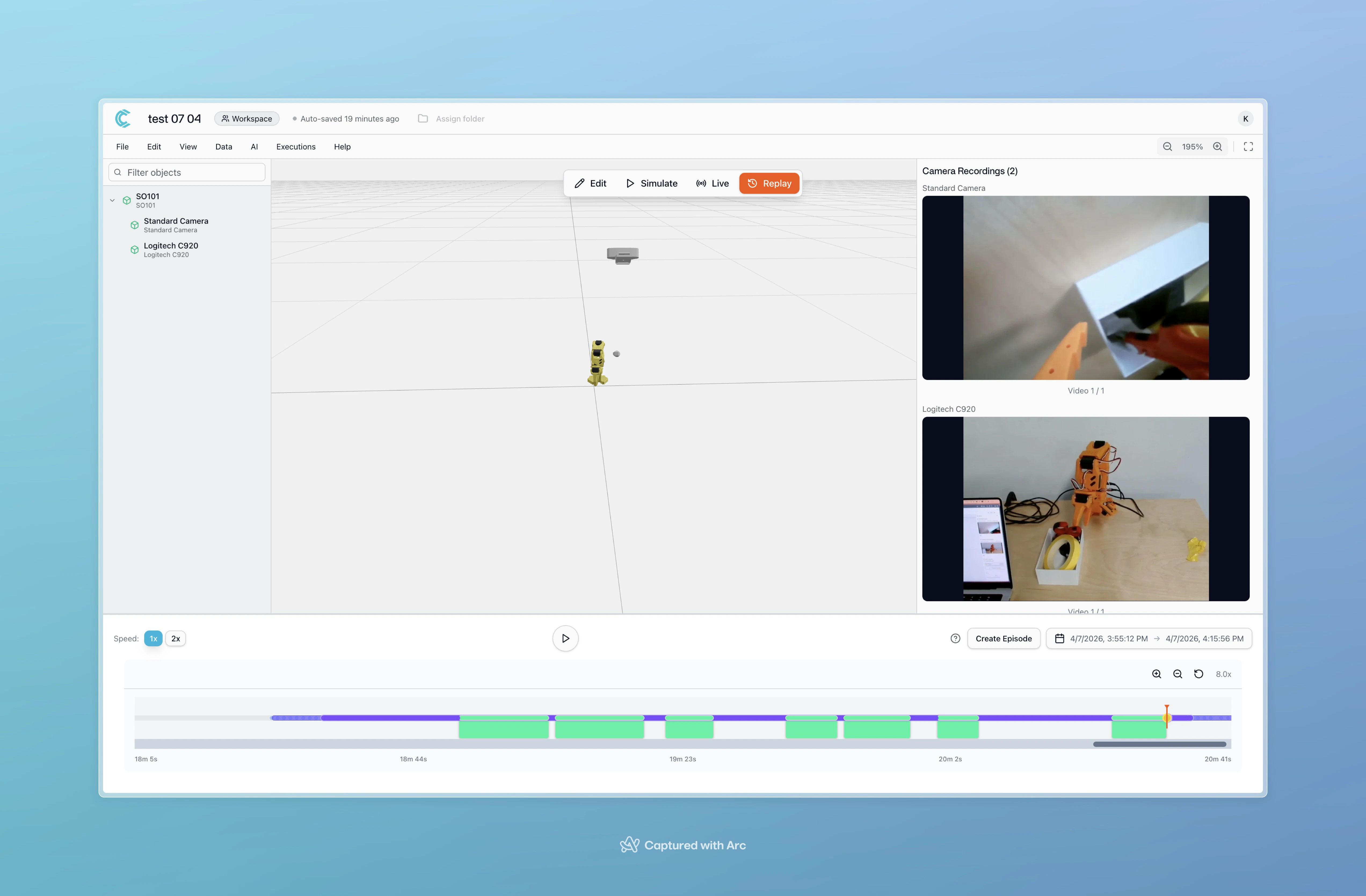 **stub**: Keyboard arrow navigation for timeline scrubbing is currently being improved to reduce mouse usage during episode creation.
Each episode should contain:
* One complete task execution (start to finish)
* Clean start and end points (no long pauses)
* Successful task completion (remove failures)
### Create a Dataset
Once you've created multiple episodes:
1. Review all episodes for quality
2. Select the episodes to include in your dataset (use checkboxes)
3. Click **Create Dataset**
4. Name your dataset descriptively (e.g., "pick-place-red-cube-v1")
**stub**: Keyboard arrow navigation for timeline scrubbing is currently being improved to reduce mouse usage during episode creation.
Each episode should contain:
* One complete task execution (start to finish)
* Clean start and end points (no long pauses)
* Successful task completion (remove failures)
### Create a Dataset
Once you've created multiple episodes:
1. Review all episodes for quality
2. Select the episodes to include in your dataset (use checkboxes)
3. Click **Create Dataset**
4. Name your dataset descriptively (e.g., "pick-place-red-cube-v1")
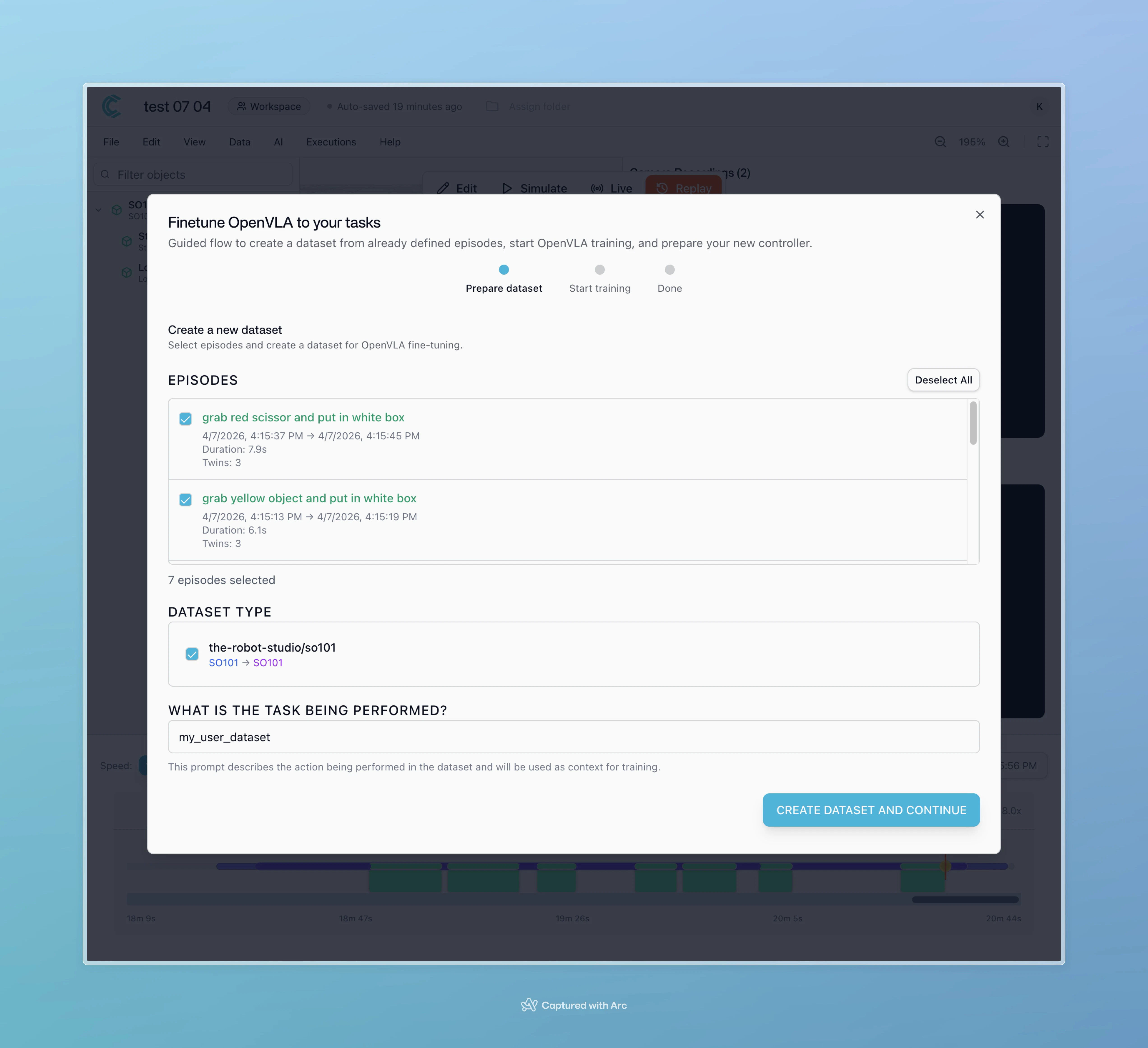 Your dataset is now ready for training.
**Dataset created successfully.** You now have structured training data containing multiple demonstrations of your task.
**API Reference:**
* `GET /api/v1/episodes` - List episodes (filter by environment)
* `POST /api/v1/episodes` - Create a new episode
* `GET /api/v1/datasets` - List datasets
* `POST /api/v1/datasets` - Create a dataset from episodes
* `GET /api/v1/datasets/{uuid}` - Get dataset details
**MQTT Topics:**
Episodes and datasets are created via API only (no real-time MQTT). However, recordings that feed episodes are triggered by the `telemetry_end` event on `cyberwave/twin/{uuid}/telemetry`.
***
## Step 4: Train an AI Model
With your dataset ready, you'll train a VLA model that can learn to replicate the demonstrated behavior.
### Start the Training Wizard
1. Click the **AI menu** in your environment header
2. Select **Guided Training Wizard**
3. Choose your dataset from the list
Your dataset is now ready for training.
**Dataset created successfully.** You now have structured training data containing multiple demonstrations of your task.
**API Reference:**
* `GET /api/v1/episodes` - List episodes (filter by environment)
* `POST /api/v1/episodes` - Create a new episode
* `GET /api/v1/datasets` - List datasets
* `POST /api/v1/datasets` - Create a dataset from episodes
* `GET /api/v1/datasets/{uuid}` - Get dataset details
**MQTT Topics:**
Episodes and datasets are created via API only (no real-time MQTT). However, recordings that feed episodes are triggered by the `telemetry_end` event on `cyberwave/twin/{uuid}/telemetry`.
***
## Step 4: Train an AI Model
With your dataset ready, you'll train a VLA model that can learn to replicate the demonstrated behavior.
### Start the Training Wizard
1. Click the **AI menu** in your environment header
2. Select **Guided Training Wizard**
3. Choose your dataset from the list
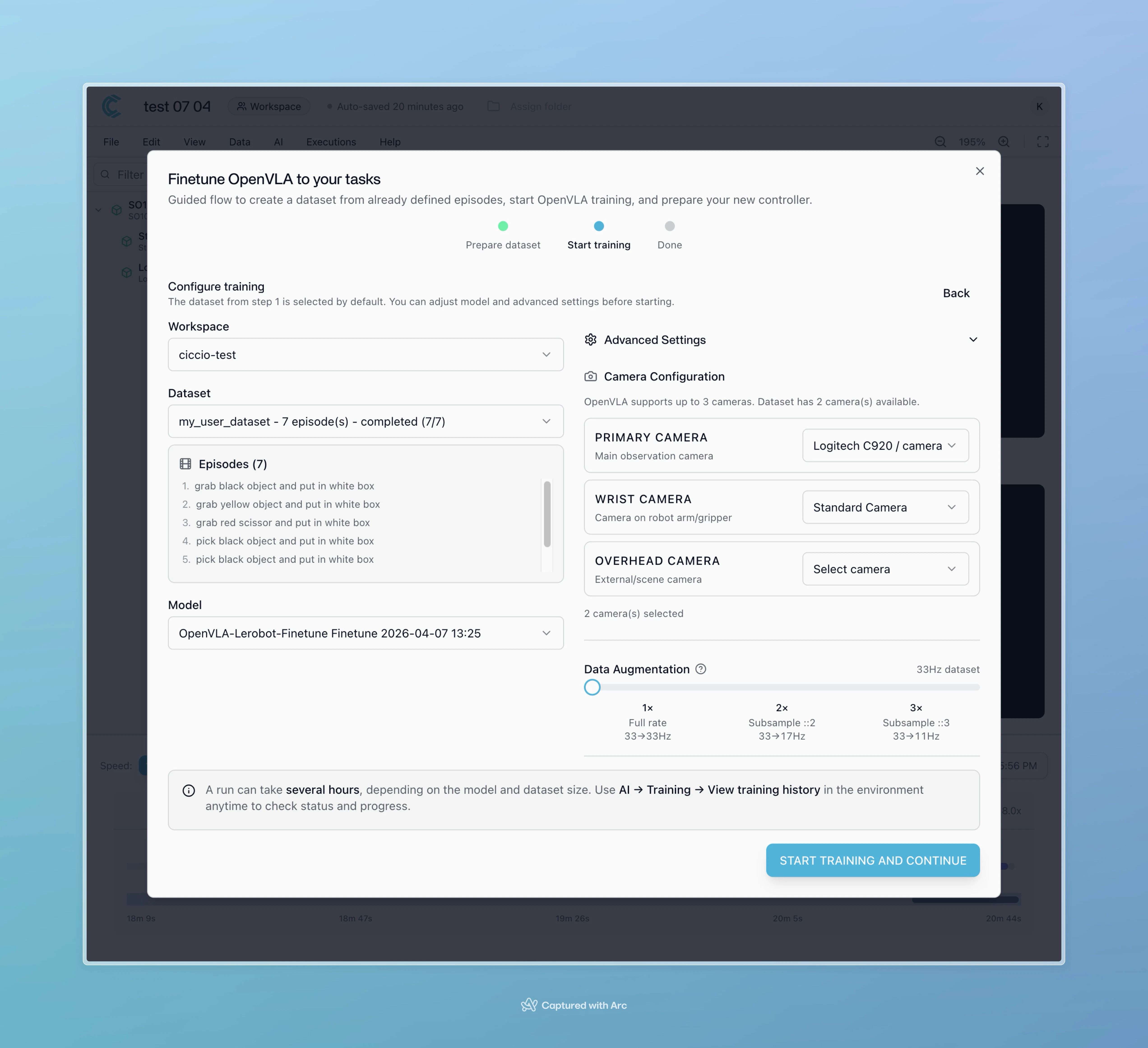 ### Configure Camera Roles
The wizard will ask you to match camera twins to specific roles:
* **Wrist camera**: Camera mounted to the robot's wrist (moves with end-effector)
* **Overhead camera**: Fixed camera viewing the workspace from above
* **Primary/Secondary cameras**: Additional viewing angles
**Critical: Camera role assignment directly affects model behavior**
VLA models learn spatial understanding from camera viewpoints. Each camera role provides distinct information:
* **Wrist cameras** see what the gripper sees, essential for fine manipulation (grasping, insertion, alignment)
* **Overhead cameras** provide spatial context: object locations, workspace layout, navigation paths
**Why this matters:**
If you swap camera roles between training and deployment, the model receives completely incorrect spatial information:
* A model trained with wrist=cam1 and overhead=cam2 expects cam1 input to show gripper-relative views
* If you deploy with wrist=cam2 and overhead=cam1, the model sees overhead views when expecting gripper views
* This causes the robot to execute actions based on wrong spatial references, leading to failed tasks or collisions
**Best practice:** Document your camera setup during training and replicate it exactly during deployment. If you change physical camera positions, you must retrain the model.
**Camera setup checklist for training and deployment:**
* Same camera mount positions and angles
* Same camera types and resolutions
* Same role assignments (wrist, overhead, etc.)
* Same lighting conditions
* Changes in any of these require retraining
### Configure Training Parameters
Set training hyperparameters based on your needs:
1. **Dataset**: Select your created dataset
2. **ML Model**: Choose the appropriate VLA architecture (defaults provided)
3. **Training iterations**: Set max iterations (recommended: 5000 for first training)
4. **Data augmentation**: Choose augmentation level (0 = none, 1 = low, 2 = medium)
5. **Stop policy**:
* "Save best model until iterations" (recommended)
* "Stop when validation loss is under threshold" (faster, may stop early)
For your first training, use default settings: 5000 iterations with "Save best model" policy. You can experiment with augmentation levels in subsequent trainings.
### Monitor Training Progress
Training will run on Cyberwave's cloud infrastructure. Monitor progress via the training dashboard:
* Training loss over time
* Validation metrics
* Estimated time remaining
* Model checkpoints
Training duration depends on:
* Dataset size (number of episodes)
* Model architecture
* Configured iteration count
**Training in progress.** Your model is learning from your demonstrations. You'll receive a notification when training completes.
**API Reference:**
* `GET /api/v1/mlmodels` - List available ML models
* `POST /api/v1/mltrainings` - Start a new training
* `GET /api/v1/mltrainings/{uuid}` - Get training status
* `PUT /api/v1/mltrainings/{uuid}` - Update training (used by training scripts)
**MQTT Topics:**
ML training is managed entirely via API (cloud-side process, no edge MQTT involvement).
***
## Step 5: Deploy the Trained Model
After training completes successfully, deploy your model to make it available as a controller for your physical robot.
### Create a Model Deployment
1. Navigate to **AI → Deployments** in your environment
2. Click **Start New Deployment**
3. Select your trained model from the list
### Configure Camera Roles
The wizard will ask you to match camera twins to specific roles:
* **Wrist camera**: Camera mounted to the robot's wrist (moves with end-effector)
* **Overhead camera**: Fixed camera viewing the workspace from above
* **Primary/Secondary cameras**: Additional viewing angles
**Critical: Camera role assignment directly affects model behavior**
VLA models learn spatial understanding from camera viewpoints. Each camera role provides distinct information:
* **Wrist cameras** see what the gripper sees, essential for fine manipulation (grasping, insertion, alignment)
* **Overhead cameras** provide spatial context: object locations, workspace layout, navigation paths
**Why this matters:**
If you swap camera roles between training and deployment, the model receives completely incorrect spatial information:
* A model trained with wrist=cam1 and overhead=cam2 expects cam1 input to show gripper-relative views
* If you deploy with wrist=cam2 and overhead=cam1, the model sees overhead views when expecting gripper views
* This causes the robot to execute actions based on wrong spatial references, leading to failed tasks or collisions
**Best practice:** Document your camera setup during training and replicate it exactly during deployment. If you change physical camera positions, you must retrain the model.
**Camera setup checklist for training and deployment:**
* Same camera mount positions and angles
* Same camera types and resolutions
* Same role assignments (wrist, overhead, etc.)
* Same lighting conditions
* Changes in any of these require retraining
### Configure Training Parameters
Set training hyperparameters based on your needs:
1. **Dataset**: Select your created dataset
2. **ML Model**: Choose the appropriate VLA architecture (defaults provided)
3. **Training iterations**: Set max iterations (recommended: 5000 for first training)
4. **Data augmentation**: Choose augmentation level (0 = none, 1 = low, 2 = medium)
5. **Stop policy**:
* "Save best model until iterations" (recommended)
* "Stop when validation loss is under threshold" (faster, may stop early)
For your first training, use default settings: 5000 iterations with "Save best model" policy. You can experiment with augmentation levels in subsequent trainings.
### Monitor Training Progress
Training will run on Cyberwave's cloud infrastructure. Monitor progress via the training dashboard:
* Training loss over time
* Validation metrics
* Estimated time remaining
* Model checkpoints
Training duration depends on:
* Dataset size (number of episodes)
* Model architecture
* Configured iteration count
**Training in progress.** Your model is learning from your demonstrations. You'll receive a notification when training completes.
**API Reference:**
* `GET /api/v1/mlmodels` - List available ML models
* `POST /api/v1/mltrainings` - Start a new training
* `GET /api/v1/mltrainings/{uuid}` - Get training status
* `PUT /api/v1/mltrainings/{uuid}` - Update training (used by training scripts)
**MQTT Topics:**
ML training is managed entirely via API (cloud-side process, no edge MQTT involvement).
***
## Step 5: Deploy the Trained Model
After training completes successfully, deploy your model to make it available as a controller for your physical robot.
### Create a Model Deployment
1. Navigate to **AI → Deployments** in your environment
2. Click **Start New Deployment**
3. Select your trained model from the list
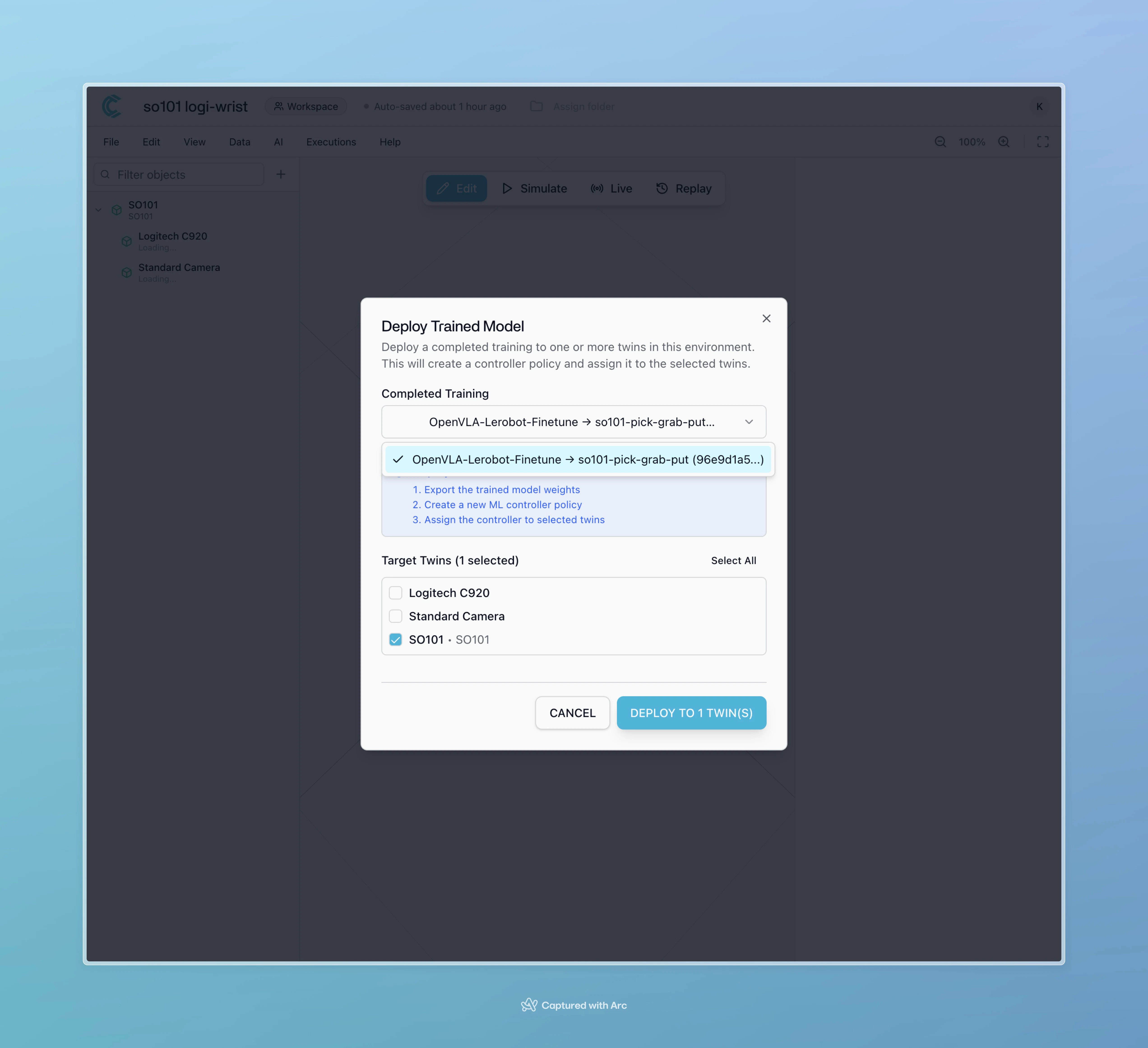 4. Select the target twins (your SO101 robot)
5. Configure deployment settings (default settings work for most cases)
6. Click **Deploy**
4. Select the target twins (your SO101 robot)
5. Configure deployment settings (default settings work for most cases)
6. Click **Deploy**
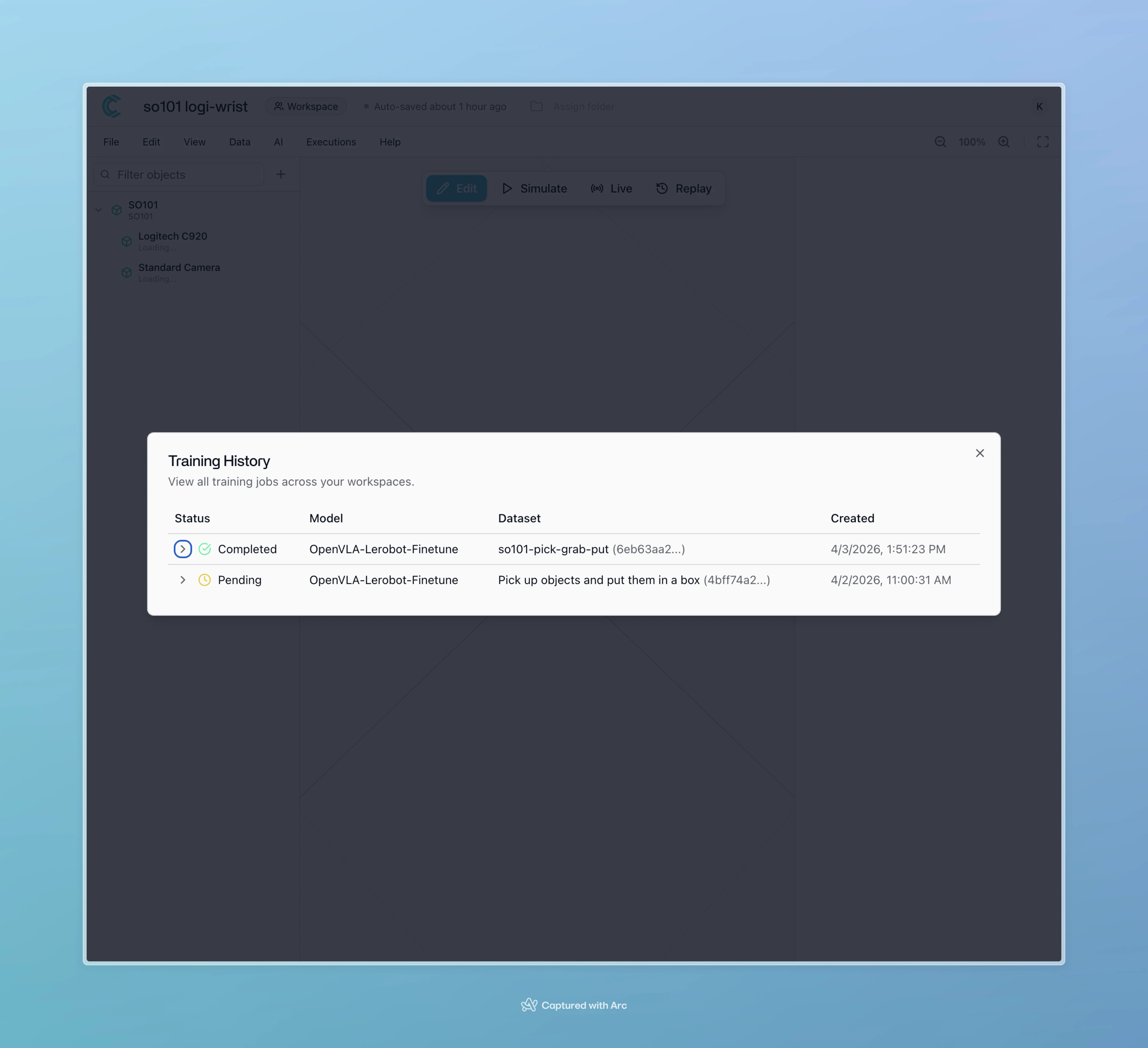 Your model is now deployed and available as a VLA controller policy.
**Model deployed successfully.** Your trained AI model is now ready to control the robot autonomously.
**API Reference:**
* `POST /api/v1/mltrainings/{uuid}/deploy` - Deploy a trained model to twins
* `GET /api/v1/mlmodels/{uuid}/weights` - Download model checkpoint weights
**MQTT Topics:**
When you deploy a model and assign it to a twin:
* `cyberwave/twin/{uuid}/command` - Sends `controller-changed` event to edge device
***
## Step 6: Control the Robot with Natural Language
Now you'll use your deployed model to control the physical SO101 robot using natural language prompts.
### Assign the VLA Controller
1. Switch to **Edit Mode** in your environment
2. Select the SO101 twin
3. Click **Assign Controller Policy** from the right side panel
4. Select your deployed VLA model from the dropdown
5. Click **Save Configuration**
The model now appears as an active controller policy.
Your model is now deployed and available as a VLA controller policy.
**Model deployed successfully.** Your trained AI model is now ready to control the robot autonomously.
**API Reference:**
* `POST /api/v1/mltrainings/{uuid}/deploy` - Deploy a trained model to twins
* `GET /api/v1/mlmodels/{uuid}/weights` - Download model checkpoint weights
**MQTT Topics:**
When you deploy a model and assign it to a twin:
* `cyberwave/twin/{uuid}/command` - Sends `controller-changed` event to edge device
***
## Step 6: Control the Robot with Natural Language
Now you'll use your deployed model to control the physical SO101 robot using natural language prompts.
### Assign the VLA Controller
1. Switch to **Edit Mode** in your environment
2. Select the SO101 twin
3. Click **Assign Controller Policy** from the right side panel
4. Select your deployed VLA model from the dropdown
5. Click **Save Configuration**
The model now appears as an active controller policy.
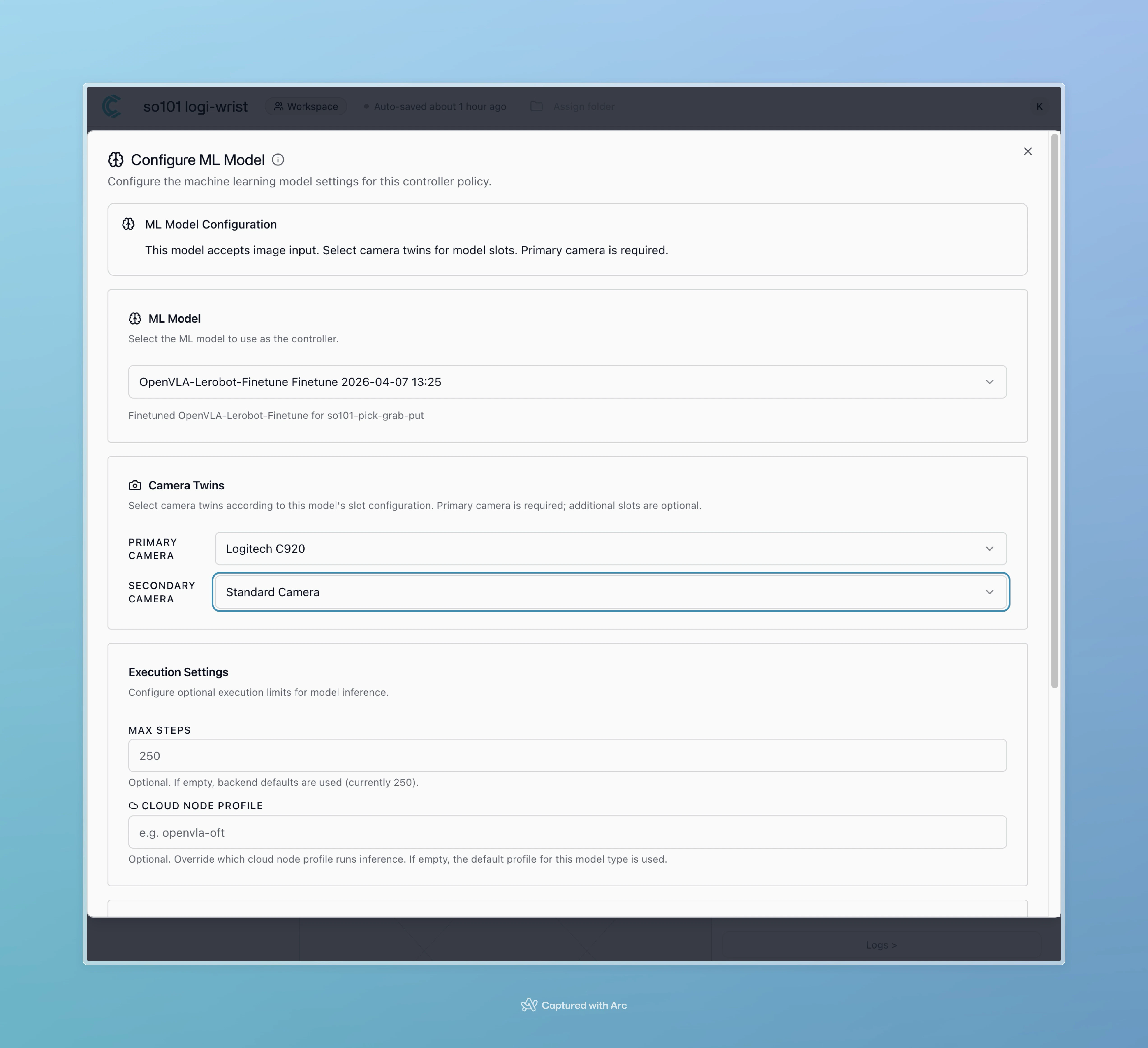 ### Execute Tasks with Prompts
1. Switch to **Live View**
2. Locate the natural language prompt input field
3. Type your instruction (e.g., "Pick up the red cube and place it in the box")
4. Press Enter or click Execute
### Execute Tasks with Prompts
1. Switch to **Live View**
2. Locate the natural language prompt input field
3. Type your instruction (e.g., "Pick up the red cube and place it in the box")
4. Press Enter or click Execute
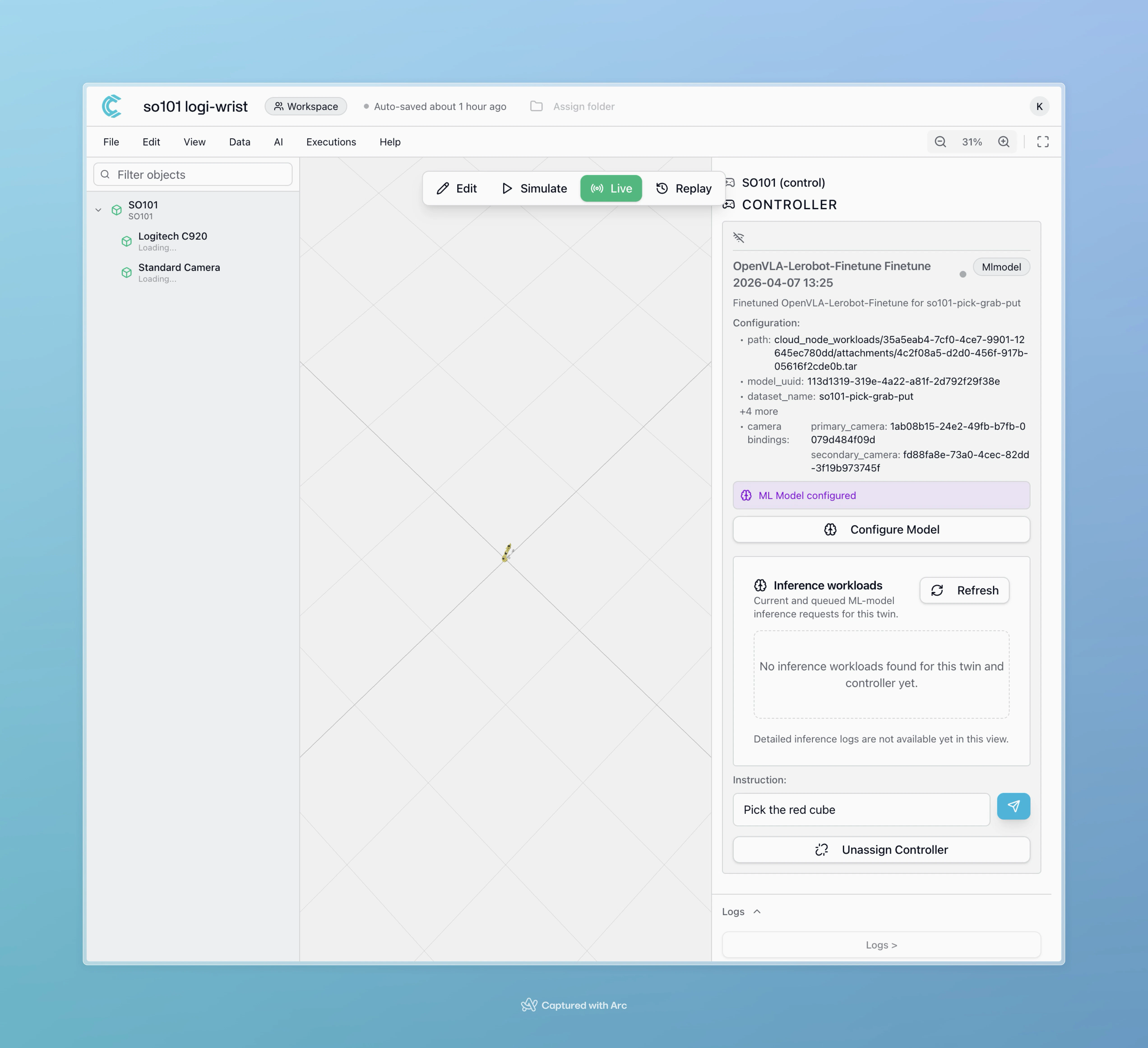 The model will:
* Process your prompt
* Generate a sequence of actions
* Execute the task on the physical robot in real-time
**Safety first:**
* Ensure the workspace is clear before executing
* Keep emergency stop accessible
* Monitor the first few executions closely
* The robot will move autonomously, so maintain safe distances
**Collision detection and safety:**
When controlled by VLA models or other controllers (anything except Local Teleop), the SO101 has built-in collision detection that monitors motor currents and joint resistance. This system attempts to stop the robot if it detects:
* Excessive force on joints (potential collision)
* Joint binding or resistance beyond normal operation
* Motor current spikes indicating obstruction
**Important limitations:**
* Collision detection is not perfect, so always supervise autonomous operations
* High-speed movements may not be stopped before minor contact occurs
* The system protects against self-destruction and major damage, but cannot prevent all collisions
* False positives may occur (robot stops unnecessarily during normal operation)
* False negatives are possible (collision not detected in time)
**During Local Teleop:** Collision detection is disabled to allow smooth human-guided movements during data collection. The operator is responsible for avoiding collisions.
**Autonomous control active!** Your SO101 is now controlled by AI using natural language prompts based on your custom training data.
**API Reference:**
* `POST /api/v1/twins/{uuid}/actions` - Execute motion actions on a twin
* `GET /api/v1/twins/{uuid}/actions/{action_id}` - Get action execution status
**MQTT Topics:**
When AI controller sends actions to robot:
* `cyberwave/joint/{uuid}/+` - Joint state commands from AI (subscribed by edge)
* `cyberwave/twin/{uuid}/position` - Position updates from AI
* `cyberwave/twin/{uuid}/rotation` - Rotation updates from AI
***
## Troubleshooting
### Calibration Issues
**Problem**: Calibration fails repeatedly
**Solutions**:
* Check USB connections to both arms
* Ensure joints move freely through full range
* Review error messages in the calibration alert
* Try recalibrating in a different order (follower first, then leader)
### Poor Teleoperation Quality
**Problem**: Follower arm doesn't mirror leader smoothly
**Solutions**:
* Verify calibration is complete and accurate
* Check for USB cable issues or loose connections
* Ensure Edge Core is running (`cyberwave edge status`)
* Monitor edge device CPU/memory usage
### Model Performance Issues
**Problem**: Deployed model doesn't perform tasks correctly
**Solutions**:
* **Camera role mismatch** (most common): Verify camera roles are assigned identically between training and deployment. If you trained with wrist=camera1 and overhead=camera2, deployment must use the same assignments. Swapped roles cause completely incorrect spatial understanding.
* **Camera position changes**: Even with correct role assignments, physical camera movement (angle, height, position) between training and deployment will degrade performance. Document and replicate exact camera positions.
* **Workspace changes**: Ensure physical setup matches training conditions (lighting, object placement, background)
* **Insufficient data**: Collect more demonstrations with greater variation in starting positions and object placements
* **Data quality**: Review episodes for smooth, consistent demonstrations without jerky movements or pauses
* **Overfitting**: Increase data augmentation level and retrain
**Problem**: Robot stops unexpectedly during AI control
**Solutions**:
* Collision detection may be triggering false positives
* Check for mechanical binding or friction in joints
* Review motor current logs to identify which joint triggered the stop
* Ensure workspace is clear of obstacles the model didn't encounter during training
* Consider retraining with more varied demonstrations if the model consistently attempts unsafe movements
### Dataset Recording Problems
**Problem**: Recorded data doesn't appear in Replay Mode
**Solutions**:
* Wait for processing to complete (depends on session duration)
* Verify Local Teleop controller was properly attached during recording
* Check Edge Core logs for errors: `cyberwave edge logs`
* Ensure edge device has sufficient disk space for recordings
***
## Next Steps
Now that you have a working VLA model deployment:
* **Collect more data**: Expand your dataset with new tasks and variations
* **Multi-task training**: Combine datasets to train models that handle multiple tasks
* **Fine-tune models**: Retrain with additional data to improve performance
* **Deploy to multiple robots**: Use the same model across multiple SO101 setups
* **Experiment with prompts**: Test different natural language instructions to understand model capabilities
Share your results and get help from the Cyberwave community on [Discord](https://discord.gg/cyberwave) or [GitHub Discussions](https://github.com/cyberwave/discussions).
***
## Related Resources
* [SO101 Get Started Guide](https://cyberwave.com/the-robot-studio/so101): Initial setup and hardware configuration
* [Deploy ML Models](/use-cyberwave/ml-models/deploy): Advanced deployment options
* [Controller Policies](/get-started/key-concepts#controller-policies): Understanding controller types
* [Dataset Management](/feature-reference/datasets/import): Advanced dataset creation techniques
The model will:
* Process your prompt
* Generate a sequence of actions
* Execute the task on the physical robot in real-time
**Safety first:**
* Ensure the workspace is clear before executing
* Keep emergency stop accessible
* Monitor the first few executions closely
* The robot will move autonomously, so maintain safe distances
**Collision detection and safety:**
When controlled by VLA models or other controllers (anything except Local Teleop), the SO101 has built-in collision detection that monitors motor currents and joint resistance. This system attempts to stop the robot if it detects:
* Excessive force on joints (potential collision)
* Joint binding or resistance beyond normal operation
* Motor current spikes indicating obstruction
**Important limitations:**
* Collision detection is not perfect, so always supervise autonomous operations
* High-speed movements may not be stopped before minor contact occurs
* The system protects against self-destruction and major damage, but cannot prevent all collisions
* False positives may occur (robot stops unnecessarily during normal operation)
* False negatives are possible (collision not detected in time)
**During Local Teleop:** Collision detection is disabled to allow smooth human-guided movements during data collection. The operator is responsible for avoiding collisions.
**Autonomous control active!** Your SO101 is now controlled by AI using natural language prompts based on your custom training data.
**API Reference:**
* `POST /api/v1/twins/{uuid}/actions` - Execute motion actions on a twin
* `GET /api/v1/twins/{uuid}/actions/{action_id}` - Get action execution status
**MQTT Topics:**
When AI controller sends actions to robot:
* `cyberwave/joint/{uuid}/+` - Joint state commands from AI (subscribed by edge)
* `cyberwave/twin/{uuid}/position` - Position updates from AI
* `cyberwave/twin/{uuid}/rotation` - Rotation updates from AI
***
## Troubleshooting
### Calibration Issues
**Problem**: Calibration fails repeatedly
**Solutions**:
* Check USB connections to both arms
* Ensure joints move freely through full range
* Review error messages in the calibration alert
* Try recalibrating in a different order (follower first, then leader)
### Poor Teleoperation Quality
**Problem**: Follower arm doesn't mirror leader smoothly
**Solutions**:
* Verify calibration is complete and accurate
* Check for USB cable issues or loose connections
* Ensure Edge Core is running (`cyberwave edge status`)
* Monitor edge device CPU/memory usage
### Model Performance Issues
**Problem**: Deployed model doesn't perform tasks correctly
**Solutions**:
* **Camera role mismatch** (most common): Verify camera roles are assigned identically between training and deployment. If you trained with wrist=camera1 and overhead=camera2, deployment must use the same assignments. Swapped roles cause completely incorrect spatial understanding.
* **Camera position changes**: Even with correct role assignments, physical camera movement (angle, height, position) between training and deployment will degrade performance. Document and replicate exact camera positions.
* **Workspace changes**: Ensure physical setup matches training conditions (lighting, object placement, background)
* **Insufficient data**: Collect more demonstrations with greater variation in starting positions and object placements
* **Data quality**: Review episodes for smooth, consistent demonstrations without jerky movements or pauses
* **Overfitting**: Increase data augmentation level and retrain
**Problem**: Robot stops unexpectedly during AI control
**Solutions**:
* Collision detection may be triggering false positives
* Check for mechanical binding or friction in joints
* Review motor current logs to identify which joint triggered the stop
* Ensure workspace is clear of obstacles the model didn't encounter during training
* Consider retraining with more varied demonstrations if the model consistently attempts unsafe movements
### Dataset Recording Problems
**Problem**: Recorded data doesn't appear in Replay Mode
**Solutions**:
* Wait for processing to complete (depends on session duration)
* Verify Local Teleop controller was properly attached during recording
* Check Edge Core logs for errors: `cyberwave edge logs`
* Ensure edge device has sufficient disk space for recordings
***
## Next Steps
Now that you have a working VLA model deployment:
* **Collect more data**: Expand your dataset with new tasks and variations
* **Multi-task training**: Combine datasets to train models that handle multiple tasks
* **Fine-tune models**: Retrain with additional data to improve performance
* **Deploy to multiple robots**: Use the same model across multiple SO101 setups
* **Experiment with prompts**: Test different natural language instructions to understand model capabilities
Share your results and get help from the Cyberwave community on [Discord](https://discord.gg/cyberwave) or [GitHub Discussions](https://github.com/cyberwave/discussions).
***
## Related Resources
* [SO101 Get Started Guide](https://cyberwave.com/the-robot-studio/so101): Initial setup and hardware configuration
* [Deploy ML Models](/use-cyberwave/ml-models/deploy): Advanced deployment options
* [Controller Policies](/get-started/key-concepts#controller-policies): Understanding controller types
* [Dataset Management](/feature-reference/datasets/import): Advanced dataset creation techniques