> ## Documentation Index
> Fetch the complete documentation index at: https://docs.cyberwave.com/llms.txt
> Use this file to discover all available pages before exploring further.
# UR Sim to Cyberwave with a Python driver
> End-to-end: Docker UR Sim, ROS 2 Humble, ur_robot_driver, and ursim_driver.py streaming joints to your twin
This tutorial is the **full hands-on path**. For **protocols and Docker topology**, see [Custom integrations](/overview/connecting-hardware/custom-hardware). For **what the SDK automates**, see [Writing compatible drivers — Python SDK drivers](/feature-reference/edge/drivers/writing-compatible-drivers#python-sdk-drivers) and [BaseROS2Driver](/feature-reference/edge/drivers/ros2-base-driver).
Connect a **simulated Universal Robots arm** to a Cyberwave twin using [`ursim_driver.py`](https://github.com/cyberwave-os/cyberwave/blob/main/cyberwave-sdks/cyberwave-python/examples/ursim_driver.py) (\~75 lines). No physical robot required.
| Step | What you do |
| ---- | ------------------------------------------------------ |
| 1–2 | Docker network + UR Sim container |
| 3 | Teach pendant program so the arm moves |
| 4–6 | ROS 2 container, UR ROS driver, verify `/joint_states` |
| 7 | Run `ursim_driver.py` → twin updates in the UI |
***
## Prerequisites
| Piece | Notes |
| ----------------- | ------------------------------------------------------------------------------------------ |
| Docker | Mac or Linux host |
| Cyberwave account | API key + twin for asset **`universal_robots/UR7`** (or change `ASSET_KEY` in the example) |
| Repo clone | Mounted into the ROS container at `/app` |
***
## 1. Create a Docker network
```bash theme={null}
docker network create ur_net
```
Containers resolve each other by name (`ursim`, `ros2_env`).
***
## 2. Start UR Sim
```bash theme={null}
docker run -d --rm --name ursim --network ur_net \
-p 5900:5900 -p 6080:6080 \
-e ROBOT_MODEL=UR7e \
universalrobots/ursim_e-series
```
Open the teach pendant:
**[http://localhost:6080/vnc.html?host=localhost\&port=6080](http://localhost:6080/vnc.html?host=localhost\&port=6080)**
Connect, **power on**, and **release the brakes**.
***
3. Program motion on the teach pendant
Joint data only changes while the arm moves. Before ROS or Cyberwave, record a short program:
1. On the pendant page, open **Program**.
2. Click **Move** to add a Move primitive.
3. Add **waypoints** — start with all joints at **0**, then any poses you want to simulate.
4. **Save** the program (for example `test`).
5. Open **Run**, **load** the program.
6. Long-press **Play** to start execution.
7. Watch motion under **Installation** (TCP visualization).
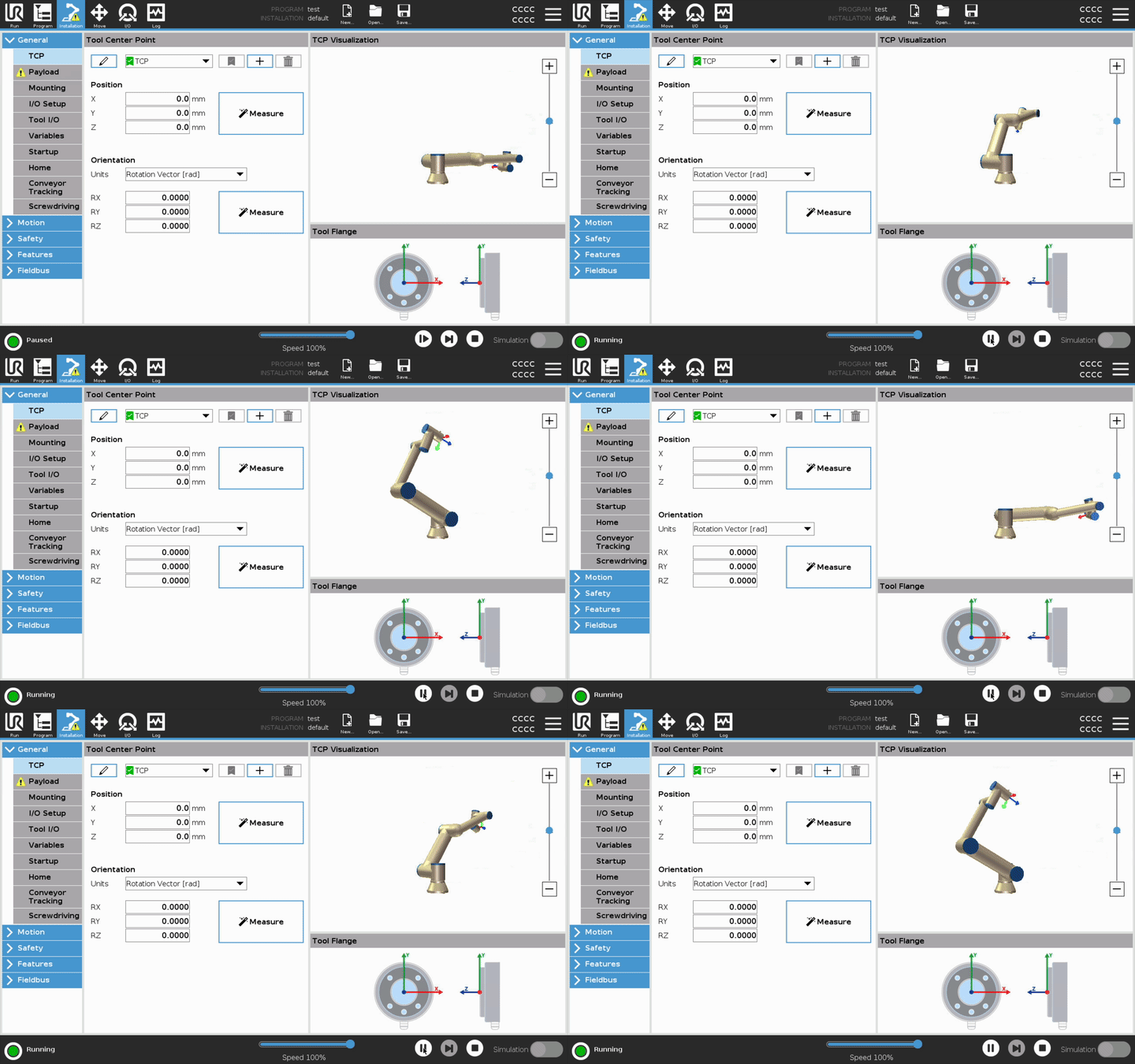 If `/joint_states` is flat later, the arm is probably idle — run the program from **Run** first.
***
## 4. Start ROS 2 with your repo mounted
```bash theme={null}
docker run -it --rm --name ros2_env --network ur_net \
-v ~/git/cyberwave:/app \
osrf/ros:humble-desktop bash
```
***
## 5. Install dependencies (inside `ros2_env`)
```bash theme={null}
apt update
apt install -y ros-humble-ur python3-pip python-is-python3
pip install cyberwave
```
***
## 6. Launch the UR ROS 2 driver (terminal 1)
Keep this shell open:
```bash theme={null}
source /opt/ros/humble/setup.bash
ros2 launch ur_robot_driver ur_control.launch.py ur_type:=ur7e robot_ip:=ursim
```
Optional check (second `docker exec` shell):
```bash theme={null}
source /opt/ros/humble/setup.bash
ros2 topic echo /joint_states --once
```
***
## 7. Run the Cyberwave driver (terminal 2)
On the host:
```bash theme={null}
docker exec -it ros2_env bash
```
```bash theme={null}
source /opt/ros/humble/setup.bash
export CYBERWAVE_API_KEY=
export CYBERWAVE_TWIN_UUID=
export CW_ROS2_AUTO_ACTIVATE=true
export ROS_DOMAIN_ID=0
cd /app/cyberwave-sdks/cyberwave-python
PYTHONPATH=. python examples/ursim_driver.py
```
### Expected result
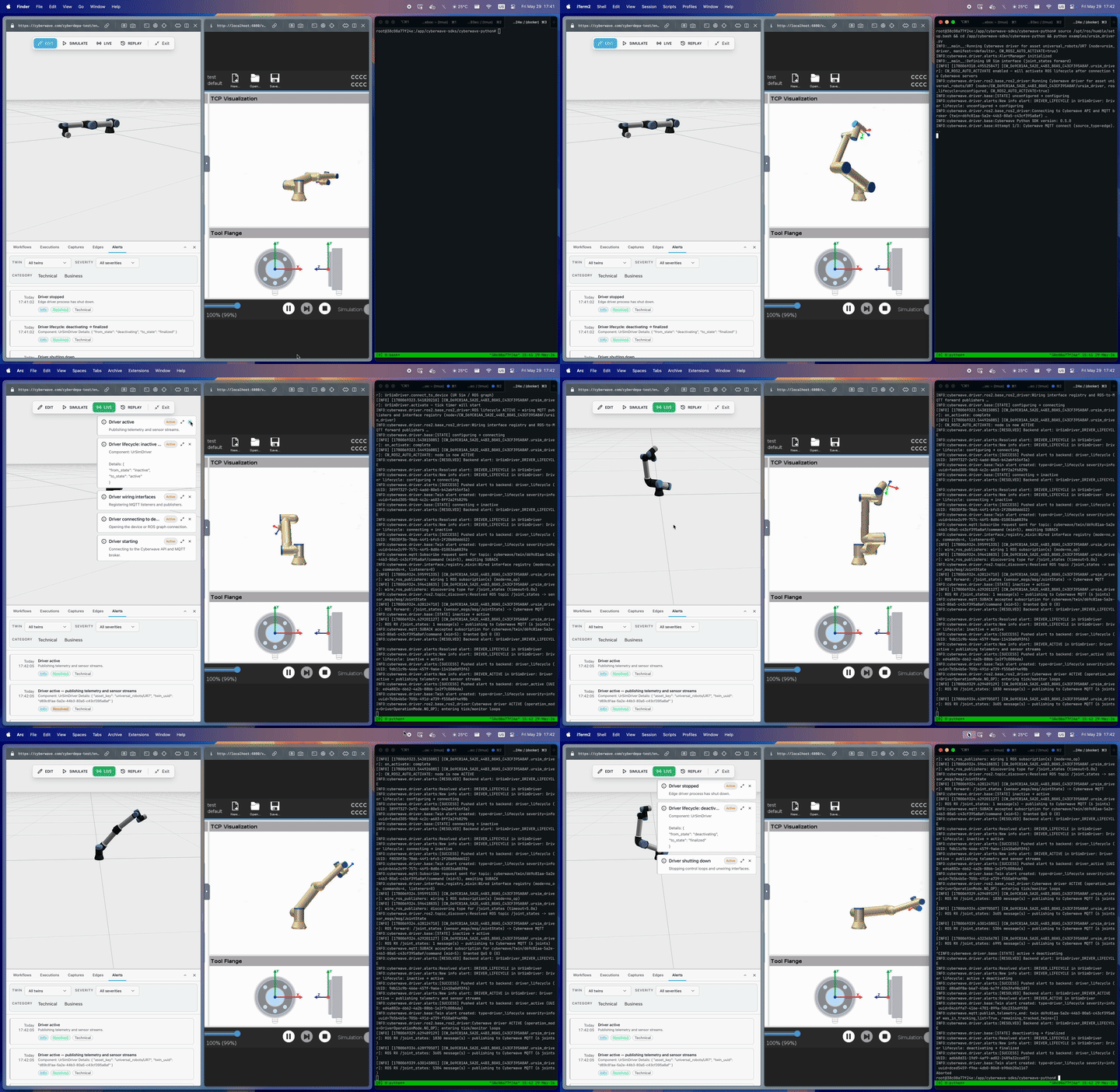
* **Terminal:** `Connected to Cyberwave servers`, `ROS forward: /joint_states …`, `Cyberwave driver ACTIVE`
* **Cyberwave UI:** twin pose tracks the sim; **Alerts** shows driver lifecycle messages
If `/joint_states` is flat later, the arm is probably idle — run the program from **Run** first.
***
## 4. Start ROS 2 with your repo mounted
```bash theme={null}
docker run -it --rm --name ros2_env --network ur_net \
-v ~/git/cyberwave:/app \
osrf/ros:humble-desktop bash
```
***
## 5. Install dependencies (inside `ros2_env`)
```bash theme={null}
apt update
apt install -y ros-humble-ur python3-pip python-is-python3
pip install cyberwave
```
***
## 6. Launch the UR ROS 2 driver (terminal 1)
Keep this shell open:
```bash theme={null}
source /opt/ros/humble/setup.bash
ros2 launch ur_robot_driver ur_control.launch.py ur_type:=ur7e robot_ip:=ursim
```
Optional check (second `docker exec` shell):
```bash theme={null}
source /opt/ros/humble/setup.bash
ros2 topic echo /joint_states --once
```
***
## 7. Run the Cyberwave driver (terminal 2)
On the host:
```bash theme={null}
docker exec -it ros2_env bash
```
```bash theme={null}
source /opt/ros/humble/setup.bash
export CYBERWAVE_API_KEY=
export CYBERWAVE_TWIN_UUID=
export CW_ROS2_AUTO_ACTIVATE=true
export ROS_DOMAIN_ID=0
cd /app/cyberwave-sdks/cyberwave-python
PYTHONPATH=. python examples/ursim_driver.py
```
### Expected result
* **Terminal:** `Connected to Cyberwave servers`, `ROS forward: /joint_states …`, `Cyberwave driver ACTIVE`
* **Cyberwave UI:** twin pose tracks the sim; **Alerts** shows driver lifecycle messages
 ***
## What you just ran
The example subclasses **`BaseROS2Driver`** and declares one `from_ros` publisher on `/joint_states`. The SDK handles Cyberwave connect, ROS lifecycle, `JointState` → MQTT serialization, and twin alerts.
```python theme={null}
class UrSimDriver(BaseROS2Driver):
ASSET_KEY = "universal_robots/UR7"
def define_interface(self, iface):
iface.add_publisher(
MqttTopicSpec(
topic_slug="cyberwave/joint/{twin_uuid}/update",
payload_schema_ref="JointStatesPayload",
),
CallbackGroup(),
from_ros=Ros2TopicSpec(topic="/joint_states"),
)
```
| Topic | Detail |
| --------------------------------------------------------------------------------------------------- | ------------------------------------------------ |
| [Python SDK drivers](/feature-reference/edge/drivers/writing-compatible-drivers#python-sdk-drivers) | What `BaseDriver` / `BaseROS2Driver` do for you |
| [BaseROS2Driver](/feature-reference/edge/drivers/ros2-base-driver) | Hooks, env vars, troubleshooting |
| [Custom integrations](/overview/connecting-hardware/custom-hardware) | TCP / ROS / MQTT stack in this lab |
| [Writing compatible drivers](/feature-reference/edge/drivers/writing-compatible-drivers) | `cw-driver.yml`, Edge Core, production packaging |
***
## Next steps
No hardware — manifest, MQTT, and commands on a D455 twin.
Run the driver as a managed container on edge hardware.
***
## What you just ran
The example subclasses **`BaseROS2Driver`** and declares one `from_ros` publisher on `/joint_states`. The SDK handles Cyberwave connect, ROS lifecycle, `JointState` → MQTT serialization, and twin alerts.
```python theme={null}
class UrSimDriver(BaseROS2Driver):
ASSET_KEY = "universal_robots/UR7"
def define_interface(self, iface):
iface.add_publisher(
MqttTopicSpec(
topic_slug="cyberwave/joint/{twin_uuid}/update",
payload_schema_ref="JointStatesPayload",
),
CallbackGroup(),
from_ros=Ros2TopicSpec(topic="/joint_states"),
)
```
| Topic | Detail |
| --------------------------------------------------------------------------------------------------- | ------------------------------------------------ |
| [Python SDK drivers](/feature-reference/edge/drivers/writing-compatible-drivers#python-sdk-drivers) | What `BaseDriver` / `BaseROS2Driver` do for you |
| [BaseROS2Driver](/feature-reference/edge/drivers/ros2-base-driver) | Hooks, env vars, troubleshooting |
| [Custom integrations](/overview/connecting-hardware/custom-hardware) | TCP / ROS / MQTT stack in this lab |
| [Writing compatible drivers](/feature-reference/edge/drivers/writing-compatible-drivers) | `cw-driver.yml`, Edge Core, production packaging |
***
## Next steps
No hardware — manifest, MQTT, and commands on a D455 twin.
Run the driver as a managed container on edge hardware.