


Documentation Index
Fetch the complete documentation index at: https://docs.cyberwave.com/llms.txt
Use this file to discover all available pages before exploring further.
Set up the UGV Beast
1. Product Assembly
Follow the steps mentioned in this tutorial for the product assembly. This assembly tutorial mainly includes two parts. The first is a tutorial on installing Raspberry Pi 4B/5 for ACCE model products, and the second is a tutorial for installing lithium batteries. Precautions: Verify correct battery polarity before powering on to avoid hardware damage. Refer to this setup guide to learn more about the precautions.2. First Time Setup
For first-time use of the UGV, you’ll have to configure the robot as per the instructions detailed out in this setup guide. This guide shows you how to connect in SSH to your UGV best. Here’s a quick work through of all the phases you need to perform for first-time use:- First Time Power On: Insert the pre-configured TF card, connect power, and wait for the OLED screen to display the robot’s IP address. If you don’t have the card, you can download here the custom Raspian image
- Connect to the Robot: Join the robot’s default Wi-Fi hotspot (AccessPopup) and open the web control interface in your browser.
- Network Configuration: Switch the robot from its default hotspot to your local Wi-Fi network using the JupyterLab terminal.
- Enable SSH: Turn on the SSH service via raspi-config so you can remotely access the Raspberry Pi from your terminal or IDE.
- SSH into the Raspberry Pi: Once SSH is enabled, connect to the Raspberry Pi from your local terminal:
<UGV_IP> with your UGV Beast’s actual IP address, which is displayed on the OLED screen (the W: line). For example: ssh ws@192.168.0.144 -p 22.
Credentials:
- Username:
ws - Password:
ws
3. End and Disable the Main Program
When the UGV Beast is powered on, it automatically runs the Raspberry Pi’s default main program, which occupies the serial port and camera. This prevents ROS 2 (and our custom Cyberwave stack) from accessing the hardware. Before proceeding, you need to end and disable the main program. Follow both steps from the official Waveshare preparation guide:- 1.1 End the main program — Stop the currently running main program to free the serial port and camera
- 1.2 Disable the main program from running automatically — Prevent it from starting again on reboot
In the standard Waveshare setup, after disabling the main program you would
start their Docker remote service. Skip that step. Instead, you’ll pull
and run the custom Cyberwave Docker image, which replaces the default Docker
container with one that includes the MQTT Bridge, Cyberwave SDK, and
pre-configured ROS 2 stack.
Configure and Launch Cyberwave
Before configuring the edge, set up the digital twin on the Cyberwave platform:- Log in to your Cyberwave Dashboard
- Create a new Environment within the project
-
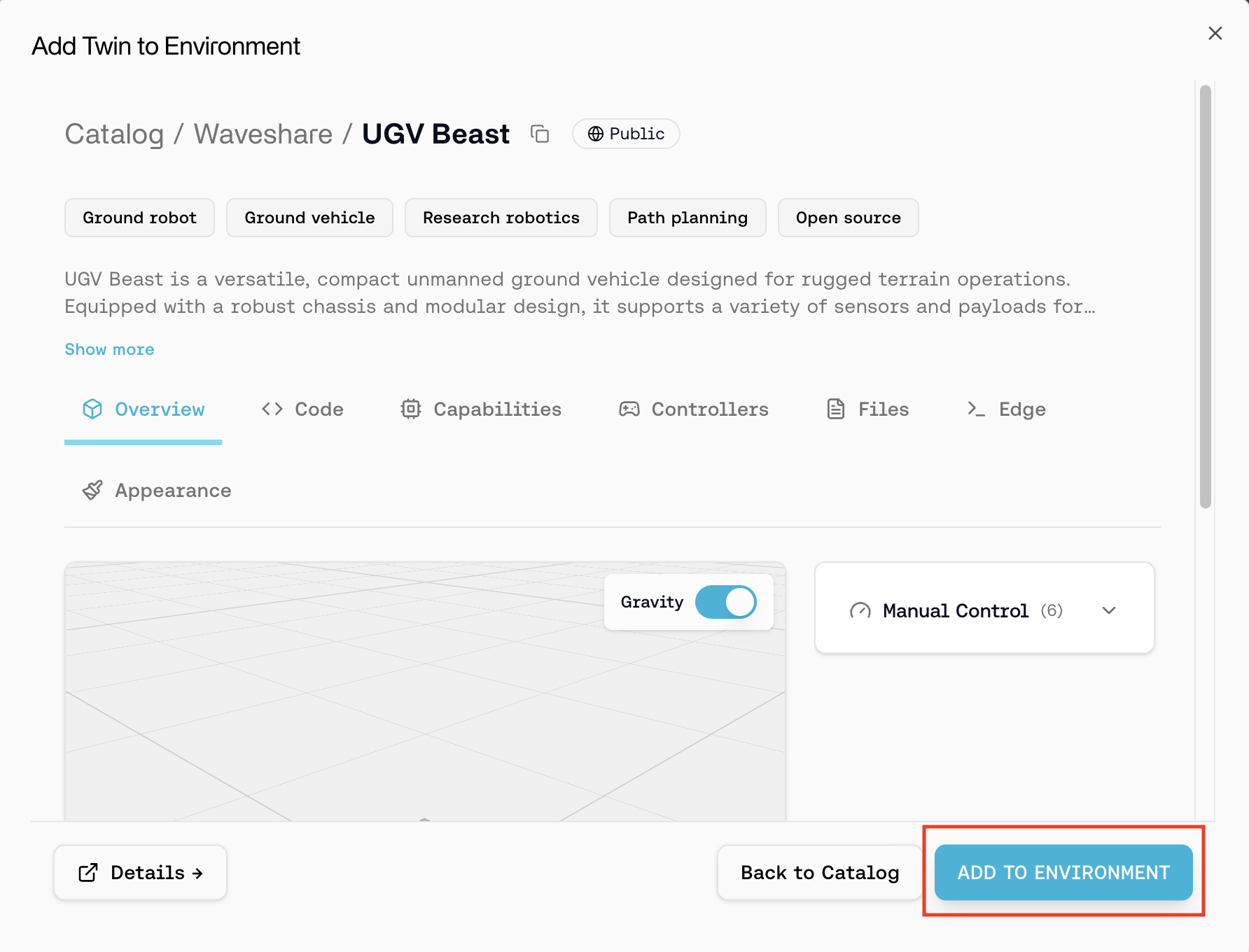
Click Add from Catalog and select UGV Beast from the Catalog
-
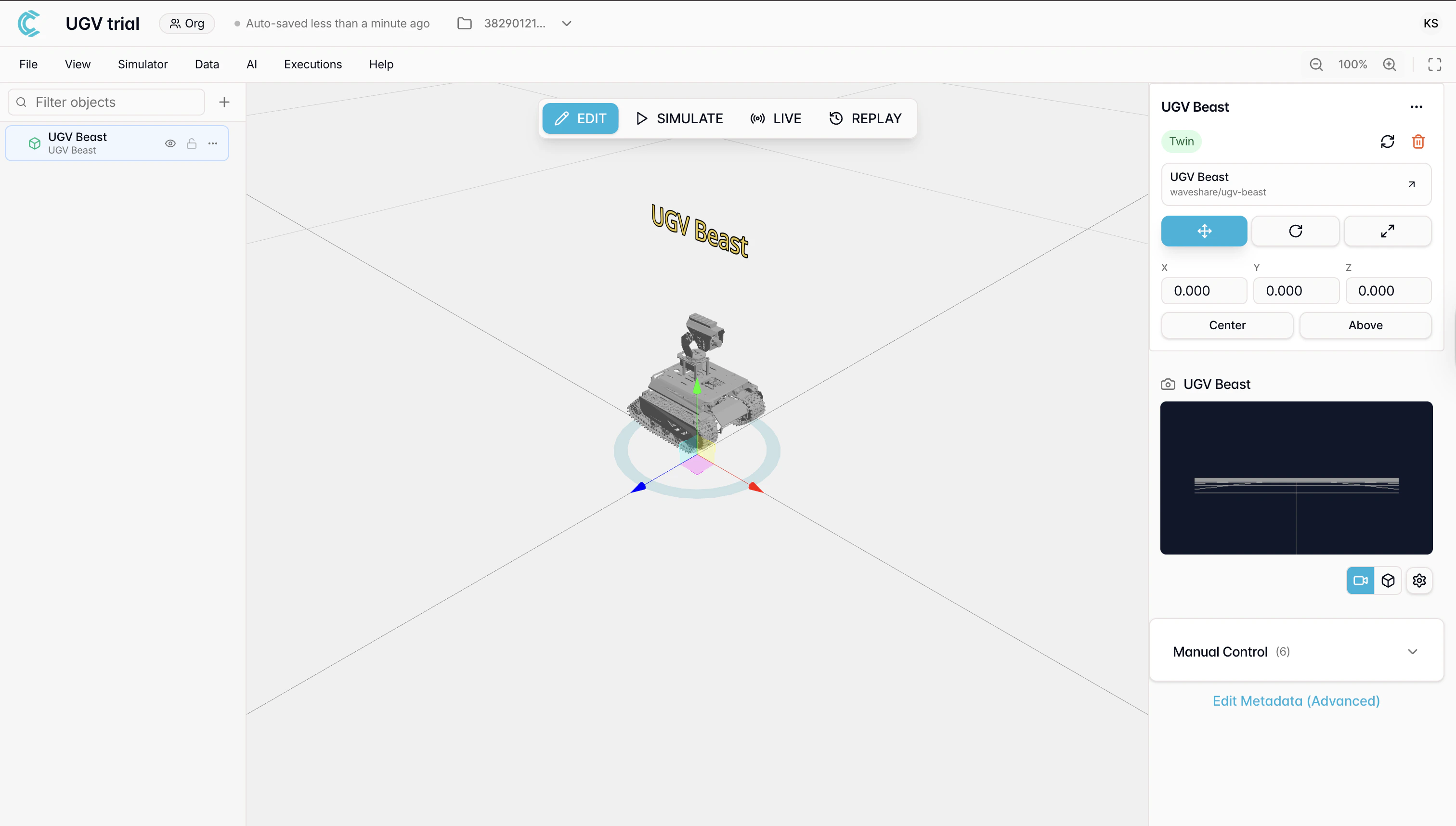
The twin is added to your environment with the required capabilities pre-configured
Install the Cyberwave CLI
Now that the UGV Beast is set up and the default main program is disabled, In case you haven’t already, from your local terminal, SSH into the UGV Beast’s Raspberry Pi:<UGV_IP> with your UGV Beast’s actual IP address, displayed on the OLED screen (the W: line). For example: ssh ws@192.168.0.144 -p 22.
Credentials:
- Username:
ws - Password:
ws - Port:
22
Add the Cyberwave UGV Beast Controller
Go back to your Cyberwave environment and switch to Live Mode to view updates in real time.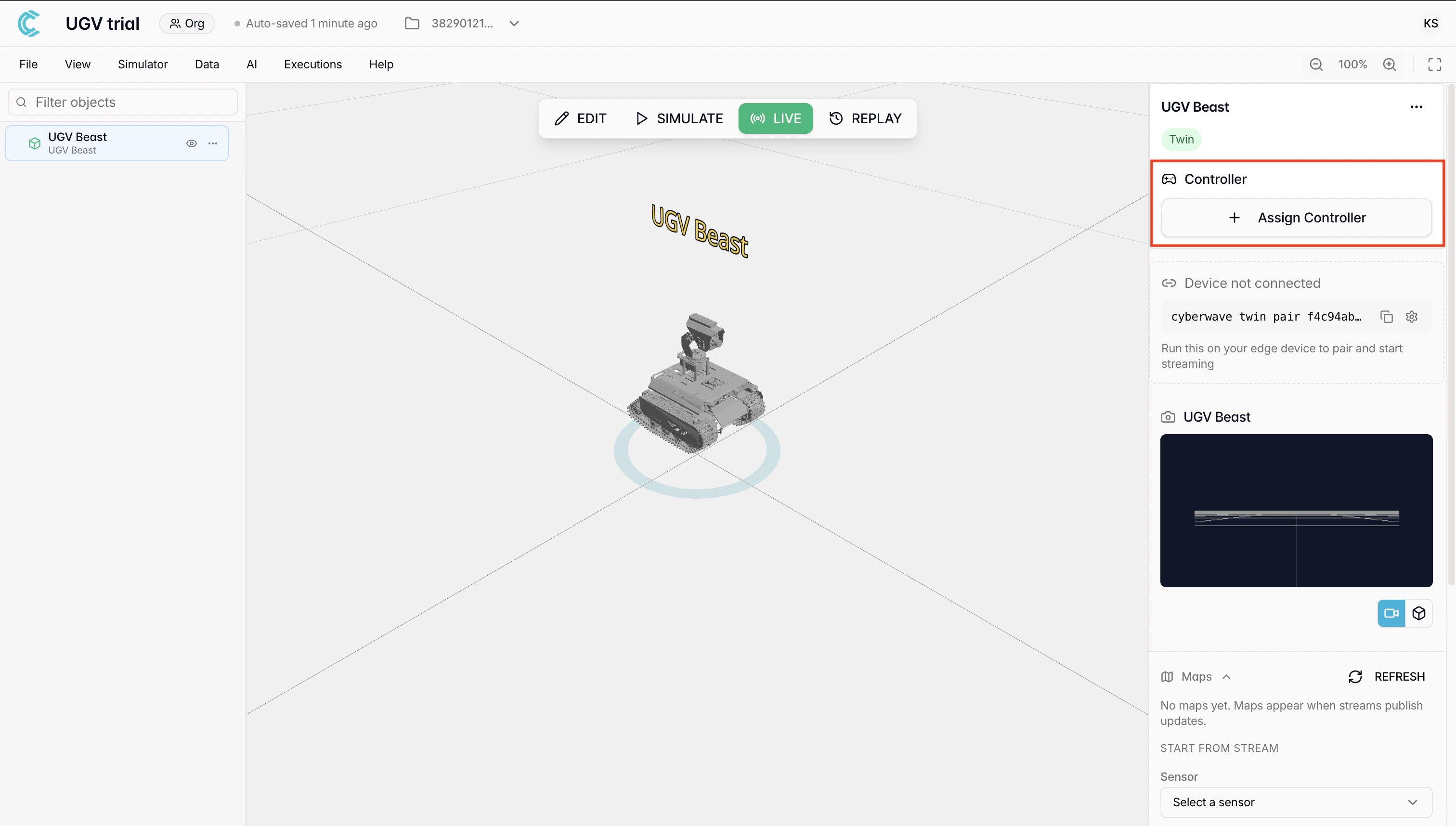
- Move the rover using keyboard input
- Turn on the onboard camera
- Record video datasets
- Interact with the robot in real time
Miscellaneous
Establish SSH Connection
The UGV Beast has two separate SSH hosts on the same device. Both use the UGV’s IP address (displayed on the OLED screen, theW: line), but they connect to different environments on different ports:
| Host | User | Port | Purpose |
|---|---|---|---|
| Raspberry Pi | ws | 22 | System administration, Docker management, network config |
| Docker Container | root | 23 | ROS 2, MQTT Bridge, Cyberwave configuration |
Option 1: Direct SSH Commands
Connect directly using the IP from the OLED screen:<UGV_IP> with your UGV’s actual IP (e.g., 192.168.0.144). Default password for both is ws.
Option 2: SSH Config Aliases (Recommended)
Add the following entries to your local~/.ssh/config file for quick, repeatable access. Replace the HostName with your UGV’s actual IP from the OLED screen:
Option 3: Via Your IDE (e.g., VS Code Remote SSH)
If you use VS Code or Cursor with the Remote - SSH extension:- Add both
ugv-ubuntuandugv-ubuntu-dockerhosts to your~/.ssh/config(as shown above) - Open the Remote Explorer panel in your IDE
- Select the host you want to connect to and open a remote window