

the-robot-studio/so101 are assets that already exist. When your hardware isn’t in the catalog, you create your own asset by uploading a URDF package.
This page walks through creating an asset from the dashboard. You can also upload programmatically, using the REST API or Python SDK methods described on the Catalog page.
Prepare your URDF package
Cyberwave accepts a single ZIP archive containing one main.urdf (or .xacro) file and every file it references, including meshes, textures, and materials.
Use relative paths inside the URDF that match your ZIP structure. If the
URDF references
meshes/arm_visual.obj, that file must exist at that path
inside the ZIP. Cyberwave processes (unpacks and validates) the archive after
you create the asset.stub
ZIP uploads can be up to 512 MB, enough for large full-mesh assets like
humanoid robots.
Sample URDF: dji-mini-4-pro.zip
A complete single-file example (a DJI Mini 4 Pro drone): one
base_link, four
propeller links, and four continuous joints. Use it as a reference for link,
joint, material, and mesh-reference structure, then bundle your own URDF with
its meshes/ folder into a ZIP.Create the asset
Open the Upload URDF package wizard from the dashboard, then complete its three steps.1
Package: upload your ZIP
On the Package step, drag and drop your ZIP into the URDF Package
(ZIP) drop zone, or click to select it. The archive should contain your
URDF/Xacro plus all referenced meshes. Click Continue.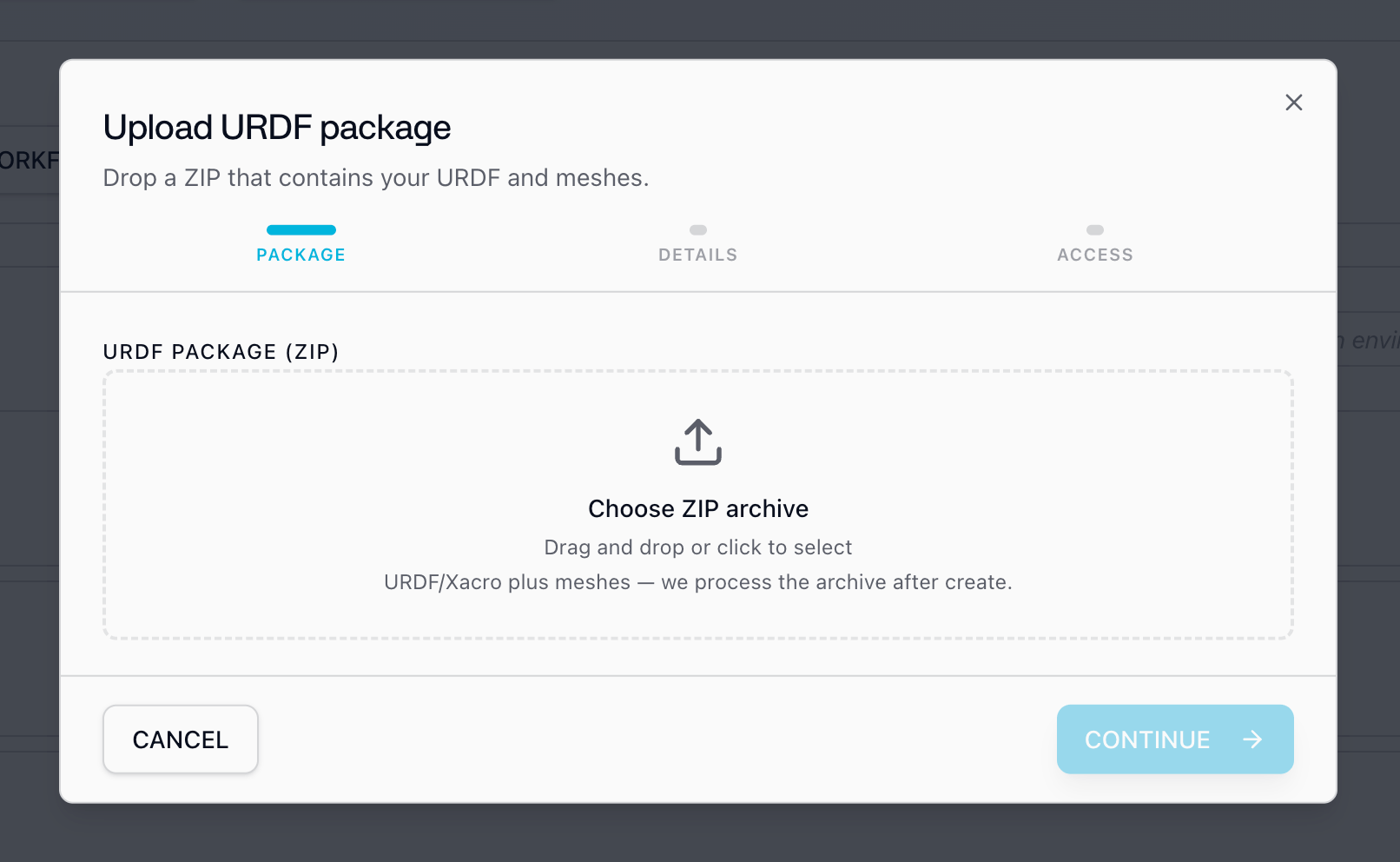
2
Details: describe your asset
On the Details step, give the asset a clear name (for example,
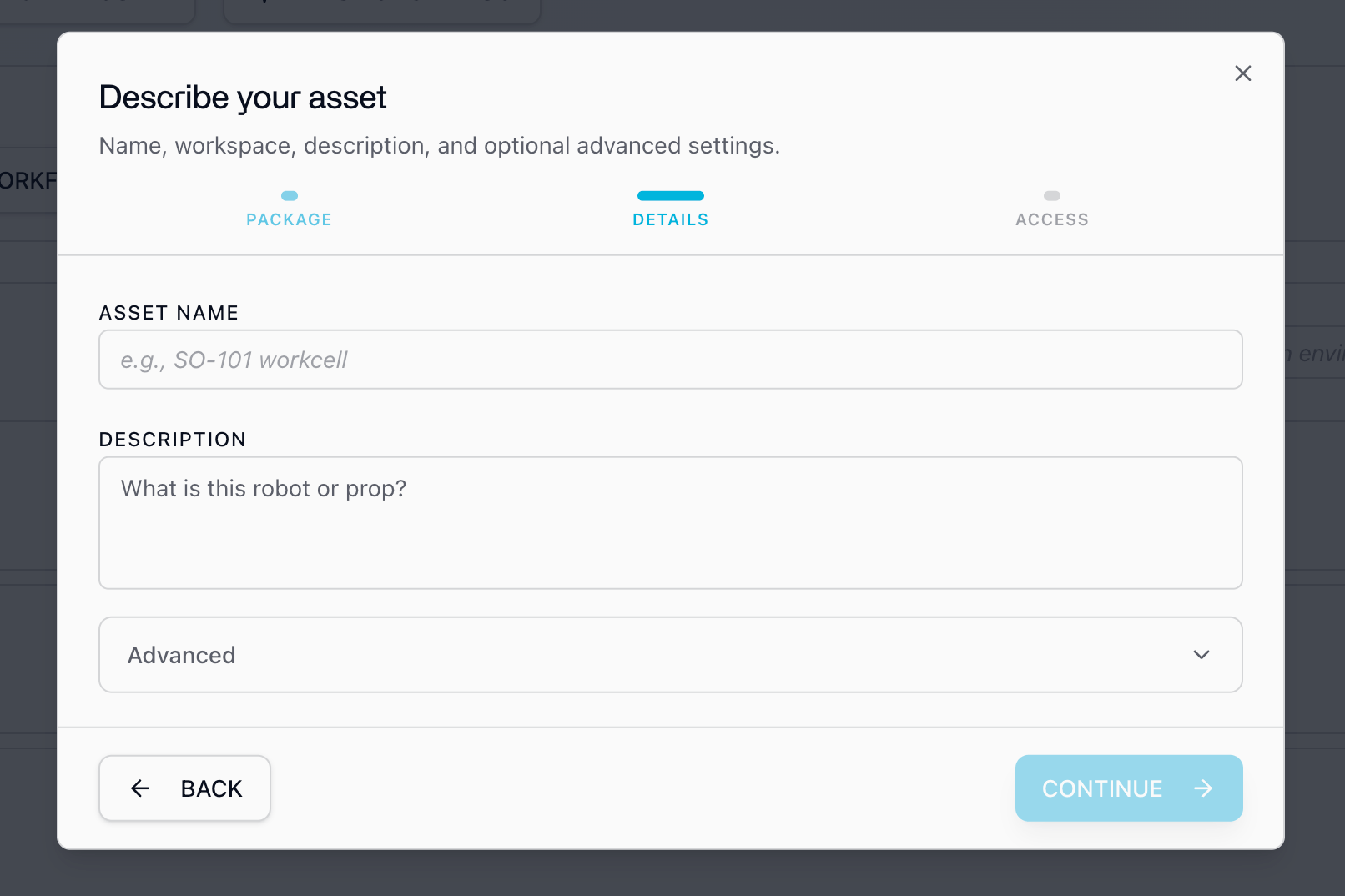
SO-101 workcell) and a short description of what the robot or prop is.-
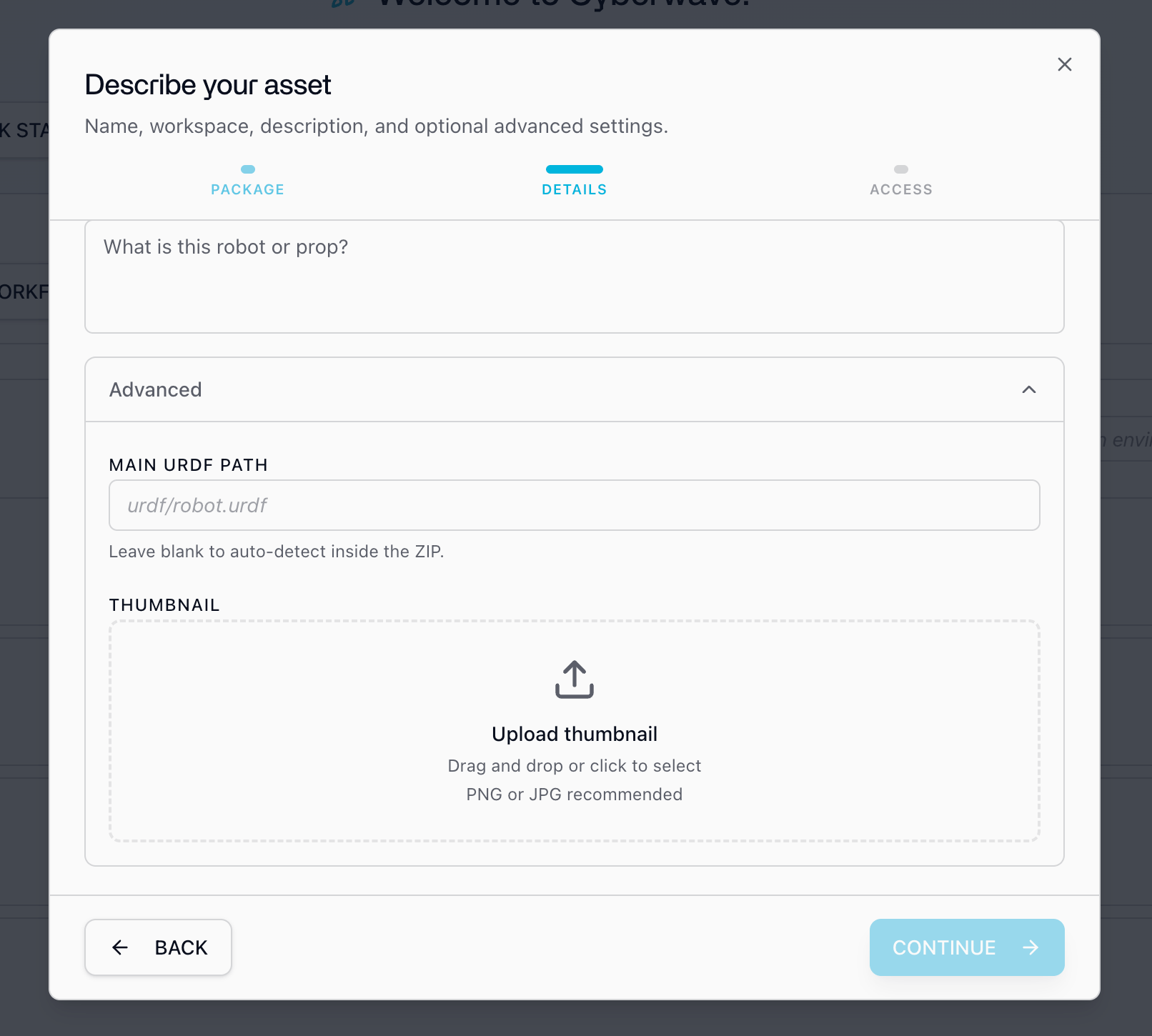
Main URDF path: the path to the main URDF inside the ZIP (for example,
urdf/robot.urdf). Leave it blank to auto-detect the URDF inside the archive, and set it only when the ZIP contains more than one URDF. -
Thumbnail: an optional preview image (PNG or JPG) for the asset card.
3
Access: choose visibility and workspace
On the Access step, choose who can see and use the asset, then pick the
workspace it belongs to.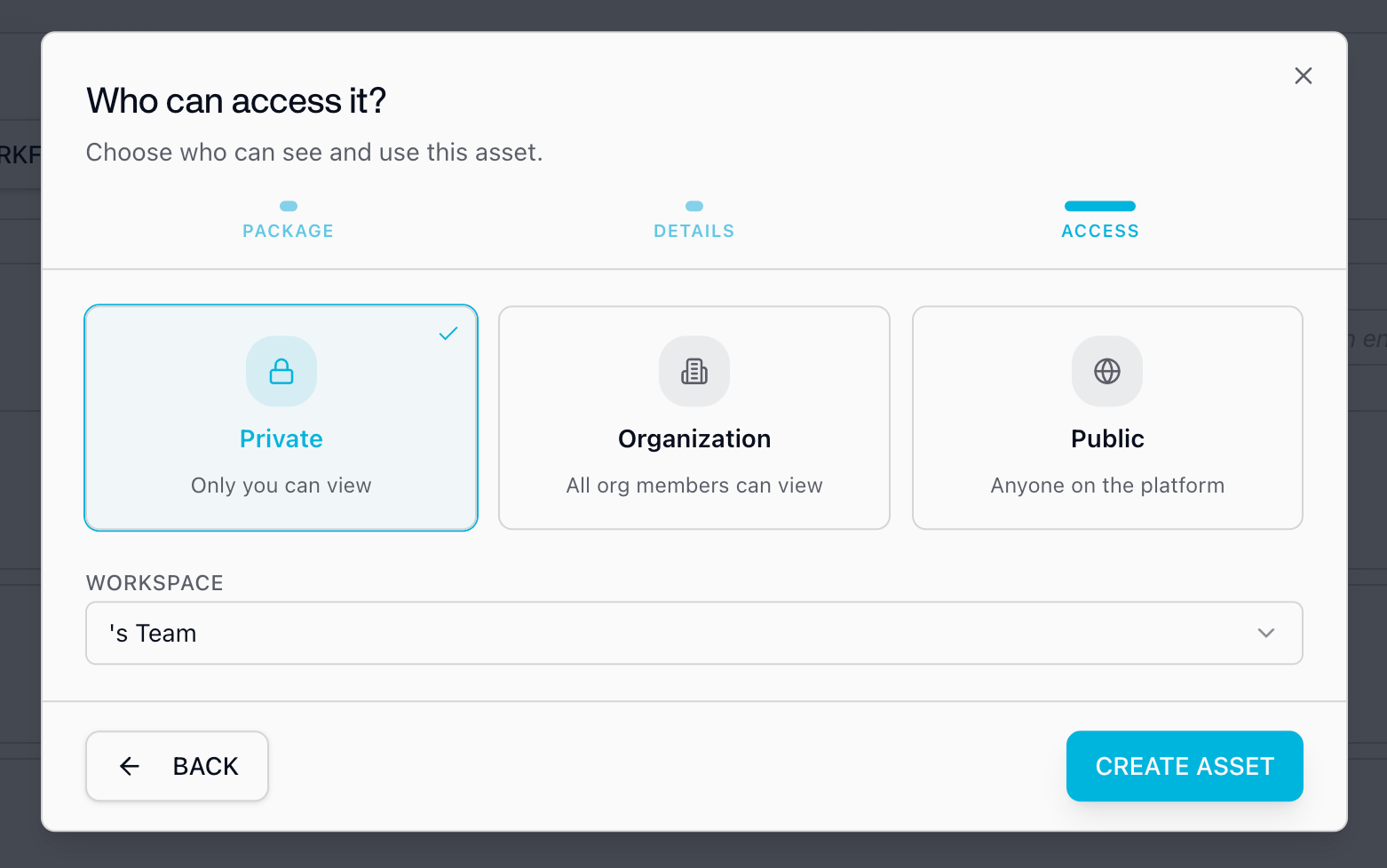
Next steps
Write a driver
Connect your hardware’s native API to the new asset’s twin so it streams and
takes commands in real time.
Custom Integrations
The full overview for bringing your own hardware online with Cyberwave.