

Overview
Access control in Cyberwave enables you to securely manage who can view, edit, and administer your data. With flexible permission models and sharing options, you can collaborate effectively with your team while maintaining security and control over your data. Key Capabilities:- Role-based access control with Viewer, Editor, and Admin permissions
- Project-level sharing with specific team members
- Public link sharing for demos and external collaboration
- Organization and workspace membership management
Access Control and Sharing
Project Sharing
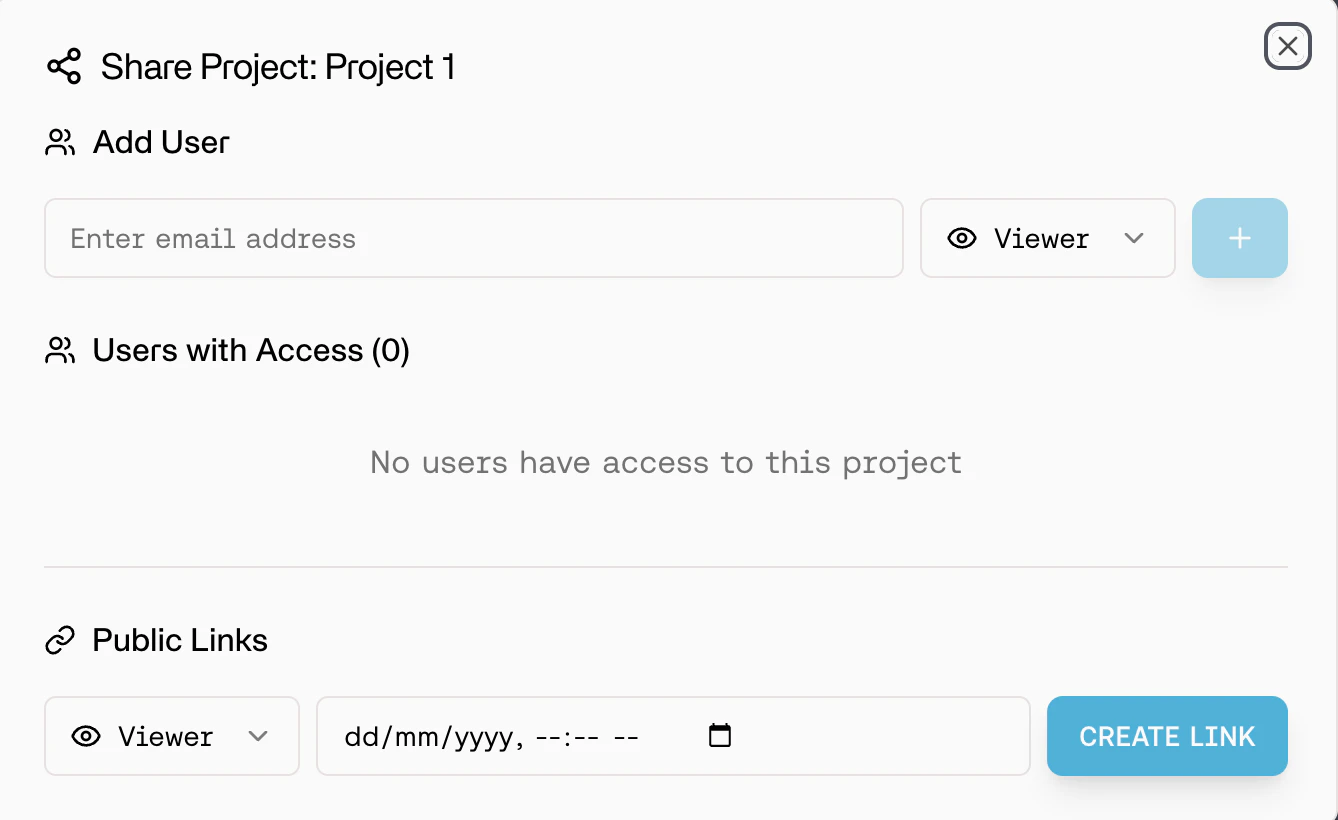
Projects can be shared with specific users or made publicly accessible through links.Role-Based Access
Share projects with team members using three permission levels:
How to Share:
- Navigate to your project settings.
- Click Share.
- Add users by email.
- Assign appropriate role (Viewer, Editor, or Admin).
- Send invitation.
Public Link Sharing
Create shareable links for broader access without requiring authentication: Link Types:- Public Viewer Link: Anyone with the link can view the project (read-only).
- Public Editor Link: Anyone with the link can edit the project.
- Share demos with stakeholders
- Collaborate with external partners
- Create public showcases of your work
Team Management
Adding Team Members
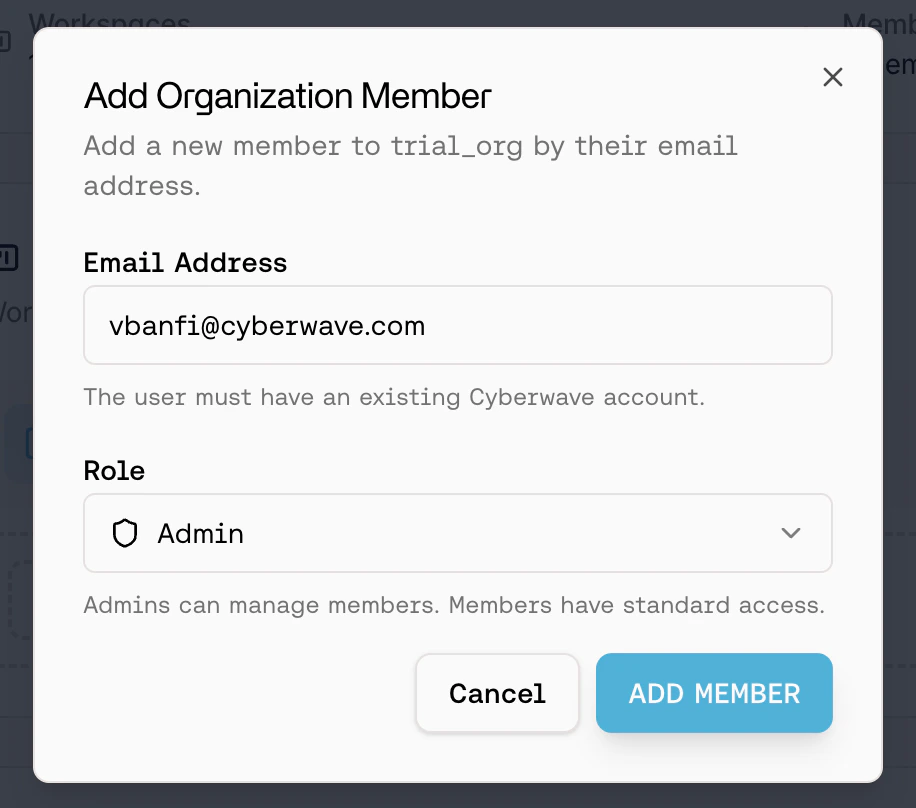
To Organization:
- Navigate to Organization Settings -> Organization Members.
- Click Add Member.
- Enter email address and set organization role.
- Send invitation.
To Workspace:
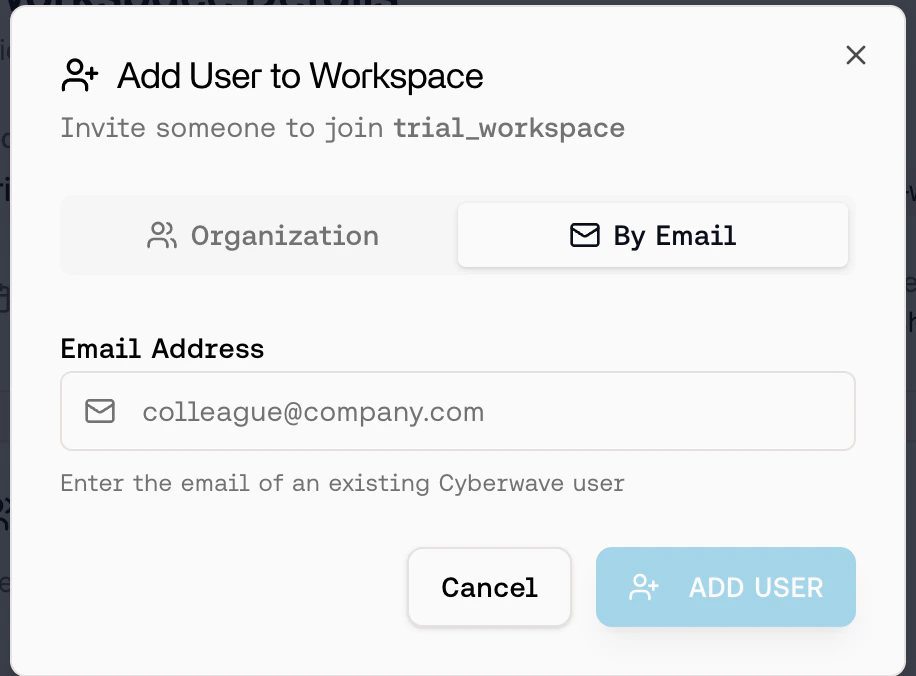
Option 1: Add Existing Organization Member- Navigate to Workspace Settings -> Team Members.
- Click Add User.
- Select from existing organization members.
- Click Add User.
- Navigate to Workspace Settings -> Team Members.
- Click Add Member.
- Enter external user’s email.
- User will be added to both organization and workspace.
Roles and visibility
This page summarizes how workspace roles and resource visibility combine to determine who can see and manage folders, environments, and related resources.Workspace Roles (ACL)
Visibility Levels
Resolution Notes
Access evaluation is role- and visibility-aware.
- Workspace role baselines and explicit shares can both grant access.
- Reader-level workspace members should be able to list workspace folders and environments they can read.
- Developer workspace role can update allowed environment content, but cannot move or delete environments.